


• Crumbs

  • Core
  • Layout
  • Content
  • Forms
  • Components
  • Navigation
  • Interactive
  • Utilities
  • Dark Mode

  • Customization
  • Mixins
  • Comparison
  • Compatibility
  • Installation
  • 3rd Party
  • 2.0.1-alpha.11

Crumbs (by Cozy Badger)

Style that sticks. Layouts that breathe.

Open issues npm version Bundle size Node version License

What is Crumbs?

Crumbs is a lightweight and minimal CSS framework designed to support the development of applications for Cozy Badger. In the spirit of Open Source, Crumbs is freely available for use in your own projects. You are also welcome to contribute to its development and improvement.

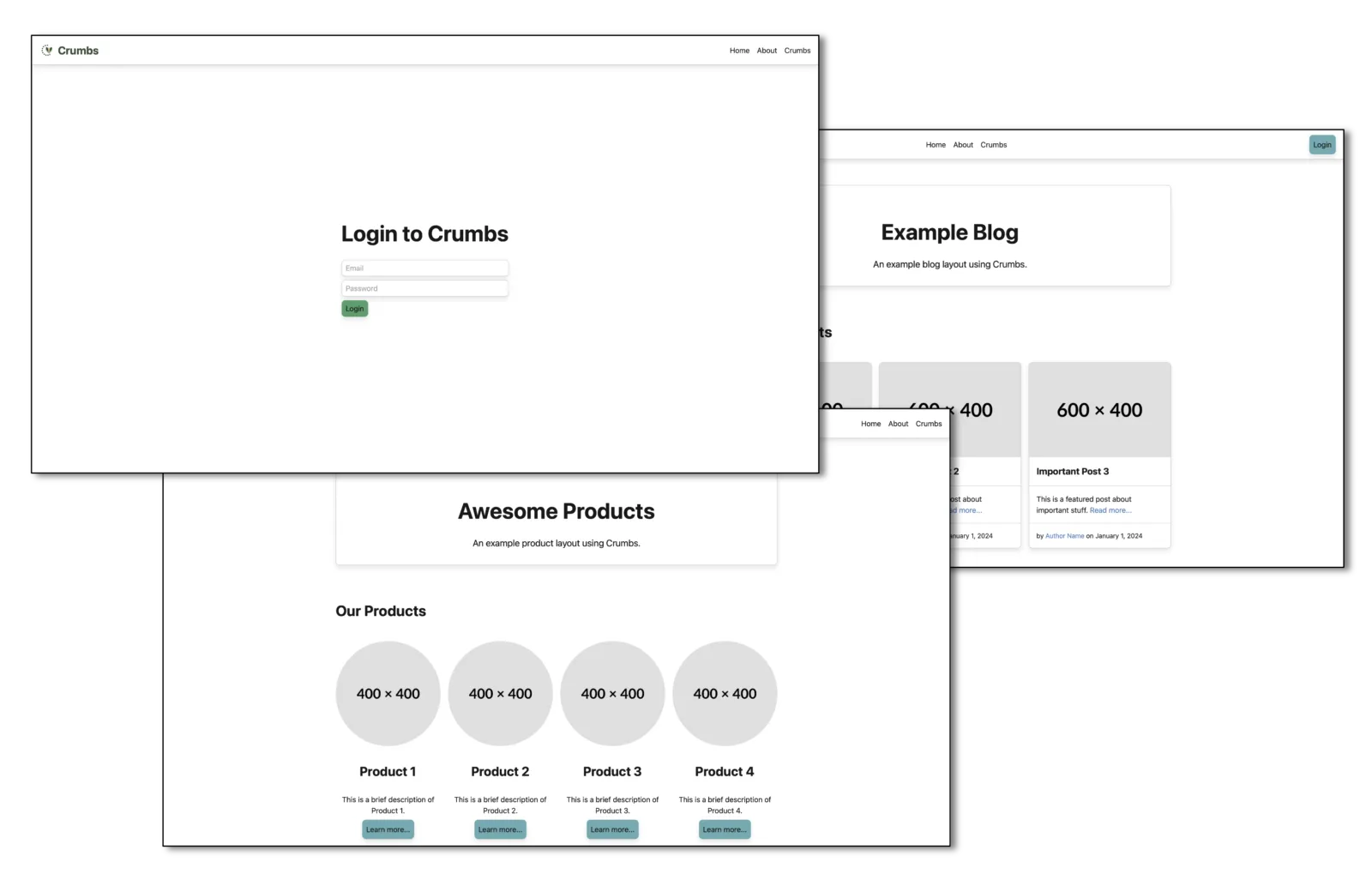
Crumbs CSS Framework Screenshot

The framework focuses on providing a solid foundation for building modern web interfaces, with an emphasis on simplicity, flexibility, and ease of use. It includes a variety of pre-defined styles and components that can be easily customized to fit the needs of your project.

Key Features

  • No JavaScript — pure CSS; no runtime scripts required or included
  • Dark Mode — automatic based on the OS or browser colour preference, with an optional pure-CSS manual toggle
  • Token-based theming — every design decision is a CSS custom property; override any value at runtime without rebuilding
  • Responsive layouts — CSS Grid system, fluid typography, and built-in breakpoints
  • Ready-to-use components — buttons, forms, navigation, cards, alerts, accordions, and more
  • Utility classes — spacing, colors, typography, borders, shadows, and icon sizing
  • Open Source — BSD-3-Clause, community contributions welcome

Examples

Practical layouts built entirely with Crumbs — ready to use as a starting point or as inspiration.

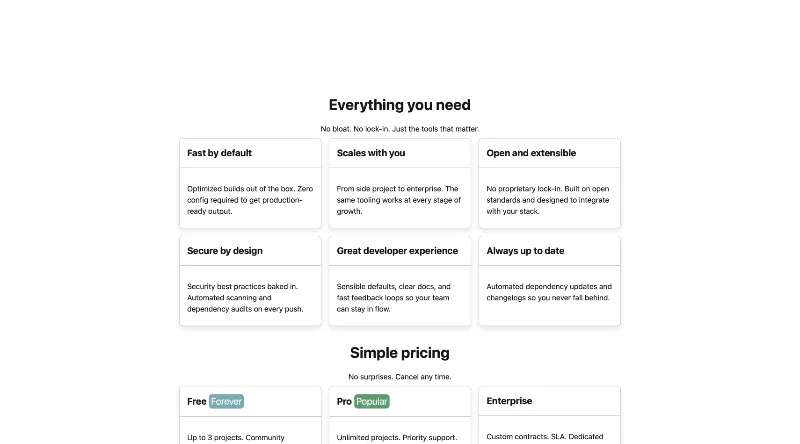
Landing Page screenshot
Landing Page

A marketing landing page with a full-screen hero, feature grid, pricing cards, testimonials, and a sign-up form.

View example
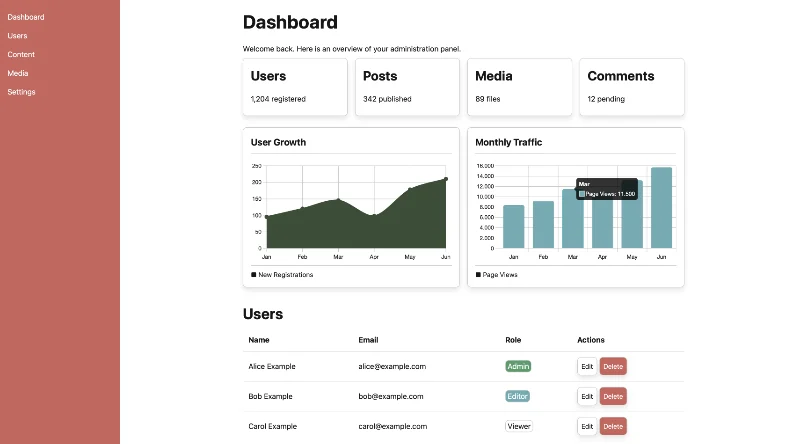
Admin Interface screenshot
Admin Interface

A sidebar dashboard with tabbed panels, stat cards, progress bars, charts, a data table, and a settings form.

View example
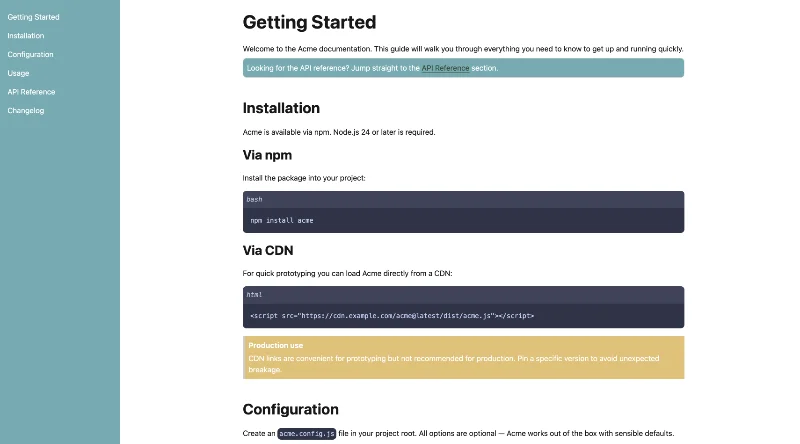
Documentation screenshot
Documentation

A docs site with sidebar nav, breadcrumb, code blocks, reference tables, and a FAQ accordion.

View example

Browse all examples →

Core

The core styles provide a solid foundation for your project.

Base values

  • Base font size: 16px (1rem)
  • Base line height: 1.5
  • Base spacing unit: 16px (1rem)

Typography

Heading sizes scale fluidly between $breakpoint-sm (36rem) and $breakpoint-xl (75rem) using CSS clamp(). Body text and h6 stay fixed at 1rem.

Heading 1 2rem → 2.5rem

Heading 2 1.75rem → 2rem

Heading 3 1.5rem → 1.75rem

Heading 4 1.25rem → 1.5rem

Heading 5 1rem → 1.25rem
Heading 6 1rem

Paragraph 1rem

Title 2rem → 3rem

Subtitle 1.25rem → 1.5rem

Inline text elements

H2O and E = mc2 — <sub> and <sup> are sized and positioned to avoid disrupting the surrounding line height.

Small text — rendered at $font-size-sm (0.875rem) via the <small> element.

Layout

Crumbs provides a simple layout system to help you structure your content.

Container

The container classes are used to center and constrain the width of your content.

<div class="container">
  ...
</div>

<div class="container-fluid">
  ...
</div>
Container behavior

The container class provides a responsive fixed width container that adjusts its max-width at different breakpoints to ensure optimal readability across devices.

The container-fluid class provides a full-width container that spans the entire width of the viewport.

Grid

The grid layout allows for the creation of complex responsive layouts. Columns can be placed directly inside .grid, or grouped with an optional .row wrapper for more control.

With rows

<div class="grid">
  <div class="row">
    <div class="col-4">Column 1 (col-4)</div>
    <div class="col-4">Column 2 (col-4)</div>
    <div class="col-4">Column 3 (col-4)</div>
  </div>
  <div class="row">
    <div class="col-6">Column 1 (col-6)</div>
    <div class="col-6">Column 2 (col-6)</div>
  </div>
  <div class="row">
    <div class="col-3">Column 1 (col-3)</div>
    <div class="col-3">Column 2 (col-3)</div>
    <div class="col-3">Column 3 (col-3)</div>
    <div class="col-3">Column 4 (col-3)</div>
  </div>
</div>
Column 1 (col-4)
Column 2 (col-4)
Column 3 (col-4)
Column 1 (col-6)
Column 2 (col-6)
Column 1 (col-3)
Column 2 (col-3)
Column 3 (col-3)
Column 4 (col-3)

Without rows

<div class="grid">
  <div class="col-4">Column 1 (col-4)</div>
  <div class="col-4">Column 2 (col-4)</div>
  <div class="col-4">Column 3 (col-4)</div>
  <div class="col-6">Column 1 (col-6)</div>
  <div class="col-6">Column 2 (col-6)</div>
</div>
Column 1 (col-4)
Column 2 (col-4)
Column 3 (col-4)
Column 1 (col-6)
Column 2 (col-6)

Auto-fill

Columns fill automatically based on a minimum width. Empty column slots are preserved at row end. Override --min-col-width to control the minimum item width (default: 16rem).

<div class="grid auto-fill">
  <div>Item 1</div>
  <div>Item 2</div>
  <div>Item 3</div>
</div>
Item 1
Item 2
Item 3

Auto-fit

Like auto-fill, but empty tracks collapse — remaining items stretch to fill the row.

<div class="grid auto-fit">
  <div>Item 1</div>
  <div>Item 2</div>
  <div>Item 3</div>
</div>
Item 1
Item 2
Item 3

Cover

The .cover layout shell creates a full-viewport section that centers its content both horizontally and vertically. Use it for hero areas, login screens, and any page that should fill the entire viewport.

<div class="cover">
  <div class="cover-inner">
    <h1>Cover Title</h1>
    <p>This section fills the viewport.</p>
    <a href="#action" class="button success">Call to Action</a>
  </div>
</div>
Examples
See .cover in action on the Landing Page and Login Form examples.

Pair with utility classes such as .text-center to align content inside the cover area, or nest a .container inside .cover-inner to constrain the content width.

Media Object

The .media layout places a fixed-width figure alongside flexible body content. Use it for comment threads, notifications, user rows, and similar side-by-side patterns.

Basic

<div class="media">
  <div class="media-figure">
    <img class="circle" src="..." alt="User avatar" style="width: 3rem; height: 3rem;">
  </div>
  <div class="media-body">
    <strong>Jane Example</strong>
    <p>This is a comment in a threaded discussion.</p>
  </div>
</div>
JE
Jane Example

This is a comment in a threaded discussion. The body grows to fill the remaining space and wraps correctly at any width.

Reversed

Add .reverse to place the figure on the right.

<div class="media reverse">
  <div class="media-figure">…</div>
  <div class="media-body">…</div>
</div>
TS
Tom Smith

The figure is placed on the right when .reverse is added to the wrapper.

Nested (threaded comments)

Place a .media inside .media-body to create indented reply threads.

<div class="media">
  <div class="media-figure">…</div>
  <div class="media-body">
    <strong>Jane Example</strong>
    <p>Original comment.</p>

    <div class="media">
      <div class="media-figure">…</div>
      <div class="media-body">
        <strong>Tom Smith</strong>
        <p>Reply to the original comment.</p>
      </div>
    </div>
  </div>
</div>
JE
Jane Example

This is the original comment in the thread.

TS
Tom Smith

This is a reply, automatically indented by the media object structure.

For the full API reference see the User manual.

Content

Crumbs provides a set of styles for common content elements to ensure consistency and readability across your application.

Code

Code snippets should be displayed using the code element.

Inline code Ctrl + c
#!/bin/bash
echo "Hello, World!"
#!/bin/bash
echo "Hello, World!"
#!/bin/bash
echo "Hello, World!"

Links

Links are styled to be clearly distinguishable from surrounding text. Use descriptive link text so users understand the destination before clicking — especially when the link opens in a new tab.

<a href="#">Example link</a>
<a href="https://example.com" target="_blank" rel="noopener">Visit example.com</a>

Example link

Visit example.com

Lists

Crumbs provides styles for unordered lists, ordered lists, and definition lists.

Unordered List

Unordered lists are used to present items without a specific order.

<ul>
  <li>Item 1</li>
  <li>Item 2
    <ul>
      <li>Subitem 1</li>
      <li>Subitem 2</li>
    </ul>
  </li>
  <li>Item 3</li>
</ul>
  • Item 1
  • Item 2
    • Subitem 1
    • Subitem 2
  • Item 3

Ordered List

Ordered lists are used to present items in a specific sequence or ranking.

<ol>
  <li>Item 1</li>
  <li>Item 2
    <ol>
      <li>Subitem 1</li>
      <li>Subitem 2</li>
    </ol>
  </li>
  <li>Item 3</li>
</ol>
  1. Item 1
  2. Item 2
    1. Subitem 1
    2. Subitem 2
  3. Item 3

Definition List

Definition lists are used to define terms and their corresponding descriptions.

<dl>
  <dt>Definition Term 1</dt>
  <dd>Definition Description 1</dd>
  <dt>Definition Term 2</dt>
  <dd>Definition Description 2</dd>
</dl>
Definition Term 1
Definition Description 1
Definition Term 2
Definition Description 2

Quotes

Quotes are used to indicate the title of a work or a quotation from a source.

Inline Quotes

Inline quotes are used within a paragraph to highlight a specific phrase or sentence.

<p>This is an example of an inline quote: <q>This is a quote within a paragraph.</q></p>

This is an example of an inline quote: This is a quote within a paragraph.

Block Quotes

Block quotes are used for longer quotations and are typically displayed as a separate block.

<blockquote>
  <p>This is a blockquote.</p>
</blockquote>

This is a blockquote.

<blockquote>
  <p>This is a blockquote with a citation.</p>
  <cite>- Author Name</cite>
</blockquote>

This is a blockquote with a citation.

- Author Name
<blockquote cite="https://example.com">
  <p>This is a blockquote with a source URL.</p>
</blockquote>

This is a blockquote with a source URL.

<blockquote cite="https://example.com">
  <p>This is a blockquote with a source URL and a citation.</p>
  <cite>- Author Name</cite>
</blockquote>

This is a blockquote with a source URL and a citation.

- Author Name

Tables

Crumbs styles all <table> elements automatically. Wrap any table in <div class="table-scroll"> to enable horizontal scrolling on narrow viewports — overflow-x on the table element itself has no effect due to the table layout algorithm. Always add scope="col" to column headers and a <caption> for accessibility. Row hover is built in — no extra class needed.

Simple Table

<div class="table-scroll">
  <table>
    <caption>Team members</caption>
    <thead>
      <tr>
        <th scope="col">Name</th>
        <th scope="col">Department</th>
        <th scope="col">Status</th>
      </tr>
    </thead>
    <tbody>
      <tr>
        <td>Alice</td>
        <td>Engineering</td>
        <td>Active</td>
      </tr>
      ...
    </tbody>
  </table>
</div>
Team members
Name Department Status
Alice Engineering Active
Bob Design Active
Carol Product On leave

Table with Header and Footer

<div class="table-scroll">
  <table>
    <caption>Quarterly results</caption>
    <thead>
      <tr>
        <th scope="col">Name</th>
        <th scope="col">Department</th>
        <th scope="col">Status</th>
      </tr>
    </thead>
    <tbody>
      ...
    </tbody>
    <tfoot>
      <tr>
        <td colspan="3">3 team members</td>
      </tr>
    </tfoot>
  </table>
</div>
Quarterly results
Name Department Status
Alice Engineering Active
Bob Design Active
Carol Product On leave
3 team members

Colored Table

<div class="table-scroll">
  <table class="colored">
    ...
  </table>
</div>
Team members
Name Department Status
Alice Engineering Active
Bob Design Active
Carol Product On leave

Bordered Table

<div class="table-scroll">
  <table class="bordered">
    ...
  </table>
</div>
Team members
Name Department Status
Alice Engineering Active
Bob Design Active
Carol Product On leave

Lined Table

<div class="table-scroll">
  <table class="lined">
    ...
  </table>
</div>
Team members
Name Department Status
Alice Engineering Active
Bob Design Active
Carol Product On leave

Images

Crumbs ships styles for images to make them responsive and visually appealing.

Responsive Images

By default, images are responsive and will scale to fit the width of their container.

<img src="https://placehold.co/1200x200/e0e0e0/000000.webp" alt="Example Image">
Example Image

Rounded Images

Use the rounded class to apply rounded corners to an image.

<img class="rounded" src="https://placehold.co/900x200/e0e0e0/000000.webp" alt="Example Image">
Example Image

Circle Images

Use the circle class to create circular images.

<img class="circle" src="https://placehold.co/200x200/e0e0e0/000000.webp" alt="Example Image">
Example Image

Shadow Images

Use the shadow class from the utilities to add a shadow effect to an image.

<img class="shadow" src="https://placehold.co/200x200/e0e0e0/000000.webp" alt="Example Image">
<img class="circle shadow" src="https://placehold.co/200x200/e0e0e0/000000.webp" alt="Example Image">
Example Image Example Image

Address

The <address> element retains its default italic styling. Use <strong> for a name or company, and <a href="mailto:"> / <a href="tel:"> for contact links — all display as block elements so each item sits on its own line.

<address>
  <strong>Acme GmbH</strong>
  <a href="mailto:hello@example.com">hello@example.com</a>
  <a href="tel:+491234567890">+49 123 456 7890</a>
  123 Example Street, Berlin
</address>
Acme GmbH hello@example.com +49 123 456 7890 123 Example Street, Berlin

Forms

Forms are an essential part of user interaction.

Login Form

A simple login form might look like this:

<form>
  <input type="text" placeholder="Username">
  <input type="password" placeholder="Password">
  <button type="submit" class="button">Login</button>
</form>

Registration Form

A simple registration form might look like this:

<form>
  <input type="text" placeholder="Username">
  <input type="email" placeholder="Email">
  <input type="password" placeholder="Password">
  <button type="submit" class="button">Register</button>
</form>

Newsletter Sign-up

Subscribe to our newsletter:

<form>
  <input type="email" placeholder="Email">
  <div class="input-group">
    <input type="checkbox" id="subscribe">
    <label for="subscribe">Subscribe me to the newsletter</label>
  </div>
  <button type="submit" class="button">Subscribe</button>
</form>

Additional Input Types

All text-like and date/time inputs receive the same border, shadow, padding, and focus treatment.

Search forms with Input Groups

Use .input-group to place an input and button inline.

<form>
  <div class="input-group">
    <input type="text" placeholder="Search...">
    <button type="submit" class="button">Search</button>
  </div>
</form>

Switch

Add role="switch" to a checkbox to render it as a toggle switch. No wrapper or extra class required.

<input type="checkbox" role="switch">
<input type="checkbox" role="switch" checked>
<input type="checkbox" role="switch" disabled>

Validation States

Add .is-valid or .is-invalid to any field to show its validation state. Use .valid-feedback or .invalid-feedback directly below the field for helper text. Apply these classes from your own validation logic — no JavaScript is included.

<input type="email" class="is-valid" value="user@example.com">
<p class="valid-feedback">Looks good!</p>

<input type="email" class="is-invalid" value="not-an-email">
<p class="invalid-feedback">Please enter a valid email address.</p>

Looks good!

Please enter a valid email address.

Both states work on all field types — <input>, <textarea>, and <select>.

<select class="is-valid">
  <option>Valid option</option>
</select>
<p class="valid-feedback">Valid selection.</p>

<textarea class="is-invalid" rows="3">Invalid content...</textarea>
<p class="invalid-feedback">This field contains errors. Please review and correct.</p>

Valid selection.

This field contains errors. Please review and correct.

Components

Crumbs includes a variety of pre-designed components to help you build your UI quickly.

Alerts

Use alerts to provide feedback messages to users.

<div class="alert">This is a default alert.</div>
<div class="alert info">This is an info alert.</div>
<div class="alert success">This is a success alert.</div>
<div class="alert warning">This is a warning alert.</div>
<div class="alert danger">This is a danger alert.</div>
This is a default alert.
This is an info alert.
This is a success alert.
This is a warning alert.
This is a danger alert.

Color classes (.info, .success, .warning, .danger) are provided by the Color Utilities.

Badges

Badges are small count and labeling components.

<span class="badge">Default</span>
<span class="badge success">Success</span>
<span class="badge info">Info</span>
<span class="badge warning">Warning</span>
<span class="badge danger">Danger</span>
Default Success Info Warning Danger

Link Badges

Use an <a> element instead of <span> to make a badge clickable.

<a href="#" class="badge">Default</a>
<a href="#" class="badge success">Success</a>
<a href="#" class="badge info">Info</a>
<a href="#" class="badge warning">Warning</a>
<a href="#" class="badge danger">Danger</a>
Default Success Info Warning Danger

Color classes (.success, .info, .warning, .danger) are provided by the Color Utilities.

Buttons

Buttons are used to trigger actions or events. They should be easily identifiable and provide feedback when interacted with.

Default Buttons

<button class="button" type="button">Simple Button</button>
<button class="button disabled" type="button">Disabled Button</button>

Button Sizes

Buttons are available in different sizes using size classes.

<button class="button lg" type="button">Large Button</button>
<button class="button md" type="button">Medium Button</button>
<button class="button" type="button">Default Button</button>
<button class="button sm" type="button">Small Button</button>
<button class="button xs" type="button">Extra Small Button</button>

Styled Buttons

Combine buttons with Color Utility classes to apply brand or neutral colors.

<button class="button primary" type="button">Primary</button>
<button class="button dark" type="button">Dark</button>
<button class="button light" type="button">Light</button>

Secondary Button

Use .secondary for a ghost-style button with a muted border and no fill.

<button class="button secondary" type="button">Secondary Button</button>

Status Buttons

Use status color utility classes to indicate different types of actions.

<button class="button info" type="button">Info Button</button>
<button class="button success" type="button">Success Button</button>
<button class="button warning" type="button">Warning Button</button>
<button class="button danger" type="button">Danger Button</button>

Callouts

Callouts are used to highlight important information.

<div class="callout">
  <div class="callout-header">Callout Header</div>
  <div class="callout-body">This is the body of the callout.</div>
</div>
<div class="callout success">
  <div class="callout-header">Success Callout</div>
  <div class="callout-body">This is a success callout.</div>
</div>
<div class="callout info">
  <div class="callout-header">Info Callout</div>
  <div class="callout-body">This is an info callout.</div>
</div>
<div class="callout warning">
  <div class="callout-header">Warning Callout</div>
  <div class="callout-body">This is a warning callout.</div>
</div>
<div class="callout danger">
  <div class="callout-header">Danger Callout</div>
  <div class="callout-body">This is a danger callout.</div>
</div>
<div class="callout">
  <div class="callout-header"><span>⚠️</span>Callout with Emoji</div>
  <div class="callout-body">This callout uses an emoji instead of an icon.</div>
</div>
Callout Header
This is the body of the callout.
Success Callout
This is a success callout.
Info Callout
This is an info callout.
Warning Callout
This is a warning callout.
Danger Callout
This is a danger callout.
⚠️Callout with Emoji
This callout uses an emoji instead of an icon.

Cards

Cards are flexible content containers with multiple variants and options.

Basic Card

A simple card with a header and body.

<div class="card">
  <div class="card-header">
    Card Header
  </div>
  <div class="card-body">
    This is some text within a card body.
  </div>
</div>
Card Header
This is some text within a card body.

Card with Image

A card that includes an image at the top.

<div class="card">
  <img class="card-image" src="image.jpg" alt="Card Image">
  <div class="card-body">
    This is some text within a card body.
  </div>
</div>
Card Image
This is some text within a card body.

You can place the image anywhere within the card.

<div class="card">
  $lt;div class="card-header">
    Card Header
  </div>
  <div class="card-body">
    This is some text within a card body.
  </div>
  <img class="card-image" src="image.jpg" alt="Card Image">
</div>
Card Header
This is some text within a card body.
Card Image

All features Card

<div class="card">
  <img class="card-image" src="image.jpg" alt="Card Image">
  <div class="card-header">
    Card Header
  </div>
  <div class="card-body">
    This is some text within a card body.
  </div>
  <div class="card-footer">
    Card Footer
  </div>
</div>
Card Image
Card Header
This is some text within a card body.
Card Footer

Cards in a Grid

You can use the grid system to layout multiple cards.

<div class="grid">
  <div class="row">
    <div class="col-4">
      <div class="card">
        <div class="card-header">Header 1</div>
        <div class="card-body">Card 1</div>
      </div>
    </div>
    <div class="col-4">
      <div class="card">
        <div class="card-header">Header 2</div>
        <div class="card-body">Card 2</div>
      </div>
    </div>
    <div class="col-4">
      <div class="card">
        <div class="card-header">Header 3</div>
        <div class="card-body">Card 3</div>
      </div>
    </div>
  </div>
</div>
Header 1
Card 1
with 2 lines
Header 2
Card 2
Header 3
Card 3

Link Card

Use an <a> element or add the .card-link class to make an entire card clickable. The card inherits its text color and removes the underline.

<a href="#" class="card">
  <div class="card-header">Clickable Card</div>
  <div class="card-body">The whole card is a link.</div>
</a>
Clickable Card
The whole card is a link. Click anywhere.

Horizontal Card

Add the .horizontal modifier to lay the image out on the left. Wrap the text regions in a .card-content element so they stack vertically inside the row layout.

<div class="card horizontal">
  <img class="card-image" src="image.jpg" alt="Card Image">
  <div class="card-content">
    <div class="card-header">Horizontal Card</div>
    <div class="card-body">
      Side-by-side layout with the image on the left and content
      stacked on the right.
    </div>
    <div class="card-footer">Card Footer</div>
  </div>
</div>
Card Image
Horizontal Card
Side-by-side layout with the image on the left and content stacked on the right.
Card Footer

Hero

The hero component is designed to create prominent sections on your webpage, typically used for showcasing key content or calls to action.

<div class="hero">
  <h1>Hero Title</h1>
  <p>This is a hero section.</p>
  <a href="#action" class="button success">Call to Action</a>
</div>

Hero Title

This is a hero section.

Call to Action

Progress

Use the native <progress> element for progress bars and loading indicators. No class is required for basic use.

Determinate

Set value and max to show completion.

<progress value="25" max="100"></progress>
<progress class="success" value="60" max="100"></progress>
<progress class="warning" value="75" max="100"></progress>
<progress class="danger" value="40" max="100"></progress>
<progress class="info" value="90" max="100"></progress>

Indeterminate

Omit value to show a looping animation for open-ended waiting states.

<progress></progress>
<progress class="success"></progress>

Spinner

Use .spinner on an inline element to show an animated loading indicator. Two styles are available: a classic rotating ring, and a three-dot bouncing variant — like crumbs falling into place.

Always add role="status" and a descriptive aria-label so screen readers can announce the loading state.

Ring

The default ring spins continuously using the primary color.

<span class="spinner" role="status" aria-label="Loading…"></span>

Sizes

Add .sm, .lg, or .xl to adjust the size.

<span class="spinner sm" role="status" aria-label="Loading…"></span>
<span class="spinner"    role="status" aria-label="Loading…"></span>
<span class="spinner lg" role="status" aria-label="Loading…"></span>
<span class="spinner xl" role="status" aria-label="Loading…"></span>

Color variants

Add a status class to tint the spinning arc.

<span class="spinner success" role="status" aria-label="Loading…"></span>
<span class="spinner warning" role="status" aria-label="Loading…"></span>
<span class="spinner danger"  role="status" aria-label="Loading…"></span>
<span class="spinner info"    role="status" aria-label="Loading…"></span>

Dots

Add .dots for a three-dot bouncing variant. The side dots are positioned with position: absolute and extend 1 rem beyond the element's inline bounds, so wrap the spinner in a container with overflow: visible (the browser default) and at least 1 rem of horizontal padding to prevent clipping.

<span class="spinner dots" role="status" aria-label="Loading…"></span>

Dots — color variants

<span class="spinner dots success" role="status" aria-label="Loading…"></span>
<span class="spinner dots warning" role="status" aria-label="Loading…"></span>
<span class="spinner dots danger"  role="status" aria-label="Loading…"></span>
<span class="spinner dots info"    role="status" aria-label="Loading…"></span>


MDN: ARIA status role

Tooltip

Add data-tooltip="…" to any element to show a tooltip on :hover and :focus-visible. No JavaScript required — the tooltip text is read from the attribute via CSS attr().

For accessibility, the tooltip must not be the only way to convey information — use it to supplement visible labels or aria-label.

Default (top)

<button class="button" data-tooltip="Save your changes">Save</button>

<a href="#" data-tooltip="Opens in a new tab">External link</a>
   External link

Placement variants

Use data-tooltip-placement="bottom|left|right" to change where the tooltip appears relative to the element.

<button class="button" data-tooltip="Above (default)">Top</button>
<button class="button" data-tooltip="Below the element" data-tooltip-placement="bottom">Bottom</button>
<button class="button" data-tooltip="To the left" data-tooltip-placement="left">Left</button>
<button class="button" data-tooltip="To the right" data-tooltip-placement="right">Right</button>
        

On icon-only controls

Tooltips are especially useful on icon-only buttons where there is no visible label. Pair with aria-label so screen readers also get a description.

<button class="button" aria-label="Delete item" data-tooltip="Delete item">
  <svg class="icon" xmlns="http://www.w3.org/2000/svg" viewBox="0 0 24 24"
    fill="none" stroke="currentColor" stroke-width="2"
    stroke-linecap="round" stroke-linejoin="round">
    <!-- Lucide: trash-2 -->
    <polyline points="3 6 5 6 21 6"/>
    <path d="M19 6l-1 14H6L5 6"/>
    <path d="M10 11v6"/>
    <path d="M14 11v6"/>
    <path d="M9 6V4h6v2"/>
  </svg>
</button>

Chart Container

The .chart component provides a styled frame for embedding third-party chart libraries. For the full element reference, Chart.js integration guide, and a live example, see 3rd Party → Charts.

Chart Title
[ chart renders here ]
■ Dataset A ■ Dataset B

Navigation

Navigation components help users move through your application.

Horizontal Nav

A plain horizontal nav without navbar styling. Use .horizontal.

<nav class="horizontal" aria-label="Horizontal Navigation">
  <ul>
    <li><a href="#">Link 1</a></li>
    <li><a href="#">Link 2</a></li>
    <li><a href="#">Link 3</a></li>
  </ul>
</nav>
  • Link 1
  • Link 2
  • Link 3

Vertical Nav

A vertical nav list suited for sidebars. Use .vertical, .stacked, or .sidebar — all three are equivalent.

<nav class="vertical" aria-label="Vertical Navigation">
  <ul>
    <li><a href="#">Link 1</a></li>
    <li><a href="#">Link 2</a></li>
    <li><a href="#">Link 3</a></li>
  </ul>
</nav>
  • Link 1
  • Link 2
  • Link 3

With Icons

Add icons to nav links to help users identify sections at a glance. Use .icon to match the link text size.

<nav class="vertical" aria-label="Main navigation">
  <ul>
    <li>
      <a href="#">
        <svg class="icon" xmlns="http://www.w3.org/2000/svg" viewBox="0 0 24 24"
          fill="none" stroke="currentColor" stroke-width="2"
          stroke-linecap="round" stroke-linejoin="round">
          <!-- Lucide: home -->
          <path d="M3 9l9-7 9 7v11a2 2 0 0 1-2 2H5a2 2 0 0 1-2-2z"/>
          <polyline points="9 22 9 12 15 12 15 22"/>
        </svg>
        Home
      </a>
    </li>
    <li>
      <a href="#">
        <svg class="icon" ...>
          <!-- Lucide: user -->
          <path d="M20 21v-2a4 4 0 0 0-4-4H8a4 4 0 0 0-4 4v2"/>
          <circle cx="12" cy="7" r="4"/>
        </svg>
        Users
      </a>
    </li>
    <li>
      <a href="#">
        <svg class="icon" ...>
          <!-- Lucide: bell -->
          <path d="M18 8A6 6 0 0 0 6 8c0 7-3 9-3 9h18s-3-2-3-9"/>
          <path d="M13.73 21a2 2 0 0 1-3.46 0"/>
        </svg>
        Notifications
      </a>
    </li>
  </ul>
</nav>
  • Home
  • Users
  • Notifications

Navbar

A horizontal navigation bar with border, shadow, and minimum height. Use nav.navbar.

Basic Markup

Use nav.navbar with ul and li to create a horizontal navigation bar.

<nav class="navbar" aria-label="Main Navigation">
  <ul>
    <li><strong>Brand</strong></li>
    <li><a href="#">Link 1</a></li>
    <li><a href="#">Link 2</a></li>
  </ul>
  <ul>
    <li><a href="#" class="button sm">Action</a></li>
  </ul>
</nav>
  • Brand
  • Link 1
  • Link 2
  • Action

Fixed Top

Add .fixed-top inside .navbar to pin it to the top of the viewport.

<nav class="navbar fixed-top" aria-label="Fixed Navigation">
  <ul>
    <li><strong>Brand</strong></li>
    <li><a href="#">Link 1</a></li>
  </ul>
</nav>

Navbar End

Use .navbar-end on a <ul> inside a .navbar to push it to the far right — ideal for login buttons, user menus, or secondary actions.

<nav class="navbar" aria-label="Main Navigation">
  <ul>
    <li><strong>Brand</strong></li>
    <li><a href="#">Link 1</a></li>
    <li><a href="#">Link 2</a></li>
  </ul>
  <ul class="navbar-end">
    <li><a href="#" class="button sm">Login</a></li>
  </ul>
</nav>
  • Brand
  • Link 1
  • Link 2
  • Login

Colored Navbar

Apply any Color Utility class to a .navbar to change its appearance.

<nav class="navbar primary" aria-label="Primary Navbar">
  <ul>
    <li><strong>Brand</strong></li>
    <li><a href="#">Link 1</a></li>
  </ul>
</nav>
<nav class="navbar dark" aria-label="Dark Navbar">
  <ul>
    <li><strong>Brand</strong></li>
    <li><a href="#">Link 1</a></li>
  </ul>
</nav>
<nav class="navbar success" aria-label="Success Navbar">
  <ul>
    <li><strong>Brand</strong></li>
    <li><a href="#">Link 1</a></li>
  </ul>
</nav>
  • Brand
  • Link 1
  • Brand
  • Link 1
  • Brand
  • Link 1

Sidebar Navigation

Use .grid.sidebar to create a two-column grid layout with a fixed-width sidebar and a flexible content area. Place a nav.sidebar in the first column — it sticks to the top and fills the full viewport height.

View full examples:

  • Admin dashboard layout
  • Documentation layout

Basic Markup

<div class="grid sidebar">
  <nav class="sidebar">
    <ul>
      <li><a href="#" class="active">Dashboard</a></li>
      <li><a href="#">Users</a></li>
      <li><a href="#">Settings</a></li>
    </ul>
  </nav>
  <main>...</main>
</div>

With Color Modifier

Apply color classes directly to nav.sidebar: .primary, .success, .warning, .danger, .info.

<nav class="sidebar primary">
  <ul>
    <li><a href="#" class="active">Dashboard</a></li>
    <li><a href="#">Users</a></li>
  </ul>
</nav>

Sidebar Width

Override --sidebar-width to change the sidebar column width. The default is 16rem.

<div class="grid sidebar" style="--sidebar-width: 20rem;">
  ...
</div>

Sidebar End

Use .sidebar-end on a <ul> inside a .sidebar to push it to the bottom — ideal for logout links, settings, or version indicators. Works because .sidebar is a flex column with height: 100vh.

<nav class="sidebar" aria-label="Sidebar Navigation">
  <ul>
    <li><a href="#">Dashboard</a></li>
    <li><a href="#">Reports</a></li>
    <li><a href="#">Settings</a></li>
  </ul>
  <ul class="sidebar-end">
    <li><a href="#">Logout</a></li>
  </ul>
</nav>
  • Dashboard
  • Reports
  • Settings
  • Logout

Tabs

Use hidden radio inputs and <label> elements to build CSS-only tabs — no JavaScript required. The active panel is revealed using the :checked sibling selector. Supports up to 6 tabs.

Add tabindex="0" to each label so keyboard users can Tab to them directly and activate with Enter or Space.

Basic tabs

<div class="tabs">
  <input type="radio" name="demo-tabs" id="demo-tab-1" hidden checked>
  <input type="radio" name="demo-tabs" id="demo-tab-2" hidden>
  <input type="radio" name="demo-tabs" id="demo-tab-3" hidden>

  <nav>
    <label for="demo-tab-1" tabindex="0">Overview</label>
    <label for="demo-tab-2" tabindex="0">Details</label>
    <label for="demo-tab-3" tabindex="0">Settings</label>
  </nav>

  <section>
    <p>Overview content goes here.</p>
  </section>
  <section>
    <p>Details content goes here.</p>
  </section>
  <section>
    <p>Settings content goes here.</p>
  </section>
</div>

Overview content goes here. Click another tab to switch panels.

Details content goes here.

Settings content goes here.

Rules

  • All <input> elements must come before the <nav> and <section> elements — CSS sibling selectors only reach forward.
  • All inputs must share the same name attribute so only one can be checked at a time.
  • The number of labels must match the number of panels.
  • One input should have checked so a panel is always visible on load.

Breadcrumb

Use .breadcrumb or aria-label="breadcrumb" on a <nav>.

<nav class="breadcrumb" aria-label="breadcrumb">
  <ul>
    <li><a href="#">Home</a></li>
    <li><a href="#">Section</a></li>
    <li><span>Current Page</span></li>
  </ul>
</nav>
  • Home
  • Section
  • Current Page

Pagination

Use nav.pagination for page navigation controls. Wrap items in an <ol> for correct list semantics. Mark the current page with aria-current="page" and disabled controls with aria-disabled="true" (omit href on disabled links).

<nav class="pagination" aria-label="Pagination">
  <ol>
    <li><a role="link" aria-disabled="true" aria-label="Previous page">«</a></li>
    <li><a href="#1" aria-current="page">1</a></li>
    <li><a href="#2">2</a></li>
    <li><a href="#3">3</a></li>
    <li><a href="#next" aria-label="Next page">»</a></li>
  </ol>
</nav>
  1. «
  2. 1
  3. 2
  4. 3
  5. »

Dropdown

Use <details class="dropdown"> and <summary> for a purely CSS-driven dropdown menu. The browser handles open and close natively — no JavaScript required. Close by clicking the trigger again or pressing Escape where supported.

Standalone

<details class="dropdown">
  <summary class="button sm">Options</summary>
  <ul class="dropdown-menu">
    <li><a href="#">Edit</a></li>
    <li><a href="#">Duplicate</a></li>
    <li><hr></li>
    <li><a href="#">Delete</a></li>
  </ul>
</details>
Options
  • Edit
  • Duplicate

  • Delete

Inside a navbar

Place .dropdown inside any navbar <li>. The menu panel positions itself below the trigger automatically.

<nav class="navbar" aria-label="Main Navigation">
  <ul>
    <li><strong>Brand</strong></li>
    <li><a href="#">Home</a></li>
    <li>
      <details class="dropdown">
        <summary>More</summary>
        <ul class="dropdown-menu">
          <li><a href="#">About</a></li>
          <li><a href="#">Blog</a></li>
          <li><a href="#">Contact</a></li>
        </ul>
      </details>
    </li>
  </ul>
</nav>
  • Brand
  • Home
  • More
    • About
    • Blog
    • Contact

With action buttons

Use <button> instead of <a> for items that trigger an action rather than navigate.

<details class="dropdown">
  <summary class="button sm">Actions</summary>
  <ul class="dropdown-menu">
    <li><button type="button">Save draft</button></li>
    <li><button type="button">Publish</button></li>
    <li><hr></li>
    <li><button type="button">Delete</button></li>
  </ul>
</details>
Actions

Scroll to Top Button

A button that allows users to quickly scroll back to the top of the page.

<a class="scroll-to-top" href="#" aria-label="Scroll to top">↑</a>

You can see an example of this button in the bottom-right corner of the page.

↑

Social Links

Use .social-links on a <ul> to display a compact row of brand and social profile links. Works inside .sidebar, .navbar, or any block container. Icons inherit color via fill="currentColor" — dark mode is handled automatically with no extra CSS.

For brand icon sources, installation options, accessibility guidance, and a live example, see 3rd Party → Social Icons.

<ul class="social-links">
  <li>
    <a href="https://gitlab.com/your-project" target="_blank" rel="noopener"
       aria-label="Project on GitLab">
      <svg class="icon-md" viewBox="0 0 24 24" fill="currentColor"
           aria-hidden="true" xmlns="http://www.w3.org/2000/svg">
        <!-- SVG path from simpleicons.org -->
      </svg>
    </a>
  </li>
</ul>

Interactive

Pure CSS interactive patterns — disclosure, overlays, and state-driven components. No JavaScript required.

Accordion

Accordions use the native <details> and <summary> elements — no JavaScript required. Wrap one or more .accordion-item elements in an .accordion container to group them visually.

Simple accordion

Any number of items can be open at the same time.

<div class="accordion">
  <details class="accordion-item">
    <summary class="accordion-header">What is Crumbs?</summary>
    <div class="accordion-body">
      <p>Crumbs is a lightweight CSS framework for responsive layouts
      and dark-mode support.</p>
    </div>
  </details>
  <details class="accordion-item">
    <summary class="accordion-header">Does it require JavaScript?</summary>
    <div class="accordion-body">
      <p>No. Crumbs is pure CSS — no JavaScript is included or required.</p>
    </div>
  </details>
  <details class="accordion-item">
    <summary class="accordion-header">How do I customize it?</summary>
    <div class="accordion-body">
      <p>Override the CSS custom properties in your own stylesheet after
      importing Crumbs.</p>
    </div>
  </details>
</div>
What is Crumbs?

Crumbs is a lightweight CSS framework for responsive layouts and dark-mode support.

Does it require JavaScript?

No. Crumbs is pure CSS — no JavaScript is included or required.

How do I customize it?

Override the CSS custom properties in your own stylesheet after importing Crumbs.

Exclusive accordion

Add a shared name attribute to every <details> element. The browser ensures only one item in the group can be open at a time — no JavaScript needed. Supported in Chrome 120+, Firefox 130+, and Safari 17.2+.

<div class="accordion">
  <details class="accordion-item" name="faq">
    <summary class="accordion-header">First item</summary>
    <div class="accordion-body">
      <p>Only one item in this group can be open at a time.</p>
    </div>
  </details>
  <details class="accordion-item" name="faq">
    <summary class="accordion-header">Second item</summary>
    <div class="accordion-body">
      <p>Opening this panel closes the previous one automatically.</p>
    </div>
  </details>
  <details class="accordion-item" name="faq">
    <summary class="accordion-header">Third item</summary>
    <div class="accordion-body">
      <p>No JavaScript required — handled natively by the browser.</p>
    </div>
  </details>
</div>
First item

Only one item in this group can be open at a time.

Second item

Opening this panel closes the previous one automatically.

Third item

No JavaScript required — handled natively by the browser.

Standalone item

A single .accordion-item without a wrapper works as a self-contained disclosure widget — useful for "show more" patterns or inline details anywhere on a page.

<details class="accordion-item">
  <summary class="accordion-header">Show more details</summary>
  <div class="accordion-body">
    <p>This standalone item needs no wrapper. Use it anywhere.</p>
  </div>
</details>
Show more details

This standalone item needs no wrapper. Use it anywhere on a page as a self-contained disclosure widget.

Popover & Dialog

Crumbs styles native <dialog> and [popover] elements using design tokens — color, spacing, border, shadow, and dark mode are all handled automatically. Animation is opt-in: add .animate-popup to any dialog or popover element to get a smooth fade-and-scale entrance and exit.

Popover

Use the popovertarget attribute to wire a button to a popover — no JavaScript required. Add .animate-popup to the popover element to enable the animation.

<button popovertarget="my-popover">Open popover</button>

<div id="my-popover" popover class="animate-popup">
  <p>This is an animated popover.</p>
  <button popovertarget="my-popover" popovertargetaction="hide">Close</button>
</div>

Animated popover

This popover fades and scales in using .animate-popup. No JavaScript was needed to open it.

Dialog

Native <dialog> requires a small script to call .showModal() and .close(). Add .animate-popup for the entrance and exit animation.

<button onclick="document.getElementById('my-dialog').showModal()">
  Open dialog
</button>

<dialog id="my-dialog" class="animate-popup">
  <h4>Dialog title</h4>
  <p>Dialog content goes here.</p>
  <button onclick="document.getElementById('my-dialog').close()">Close</button>
</dialog>

Animated dialog

This modal dialog fades and scales in via .animate-popup. The backdrop blurs the page content behind it. Close it with the button or press Escape.

Mixin

Apply the animation to your own selectors in SCSS using the popup-animation mixin. Optional parameters let you override the duration and easing.

@use '@cozybadgerde/crumbs/scss';

.my-drawer {
  @include popup-animation;
}

// Custom duration and easing
.my-tooltip {
  @include popup-animation($duration: 100ms, $easing: ease-out);
}

How it works

The animation uses two modern CSS features, both Baseline 2024:

  • @starting-style — defines the state the element animates from when it first becomes visible, enabling entry animations without JavaScript.
  • transition-behavior: allow-discrete — lets display and overlay participate in transitions so the element stays visible for the full duration of the exit animation before being removed from the top layer.

Browsers that do not yet support these features display the element instantly with no animation — a clean progressive enhancement.

Utilities

Crumbs provides a set of utility classes to help you style your components quickly and easily.

Alignments

Use alignment utilities to control the text alignment of elements.

There are text alignment classes:

<div class="text-left">Left aligned text</div>
<div class="text-center">Center aligned text</div>
<div class="text-right">Right aligned text</div>
<div class="text-justify">Justified text</div>
Left aligned text
Center aligned text
Right aligned text
Justified text

And alignment for block elements:

<div class="align-left">Left aligned block</div>
<div class="align-right">Right aligned block</div>
Left aligned block

Right aligned block

Borders

Utilize border utilities to quickly style elements with borders.

<div class="border">All borders</div>
<div class="border-left">Left border</div>
<div class="border-right">Right border</div>
<div class="border-top">Top border</div>
<div class="border-bottom">Bottom border</div>
All borders
Left border
Right border
Top border
Bottom border

Colors

Apply color utility classes to set the background and text color of any element at once. Each class sets a paired foreground color automatically, so you never need two classes to get a readable combination. The same classes work as modifiers on alerts, badges, buttons, callouts, and navigation.

Status Colors

Use semantic status colors to communicate meaning.

<div class="success">Success</div>
<div class="warning">Warning</div>
<div class="danger">Danger</div>
<div class="info">Info</div>
Success
Warning
Danger
Info

Brand Colors

Use .primary and .secondary for brand-colored backgrounds. Use .brand to apply the brand color as a text color only.

<div class="primary">Primary</div>
<div class="secondary">Secondary</div>
<p class="brand">Brand text color</p>
Primary
Secondary

Brand text color

Neutral Colors

Use .light and .dark for neutral backgrounds with matching foreground colors.

<div class="light">Light</div>
<div class="dark">Dark</div>
Light
Dark

Icons

Icon sizing and alignment classes (.icon, .icon-sm, .icon-md, .icon-lg) live in this utility layer, but their full documentation — including integration guides for Lucide and usage examples — is in the dedicated 3rd Party → Icons section.

Shadows

Apply shadow utilities to add depth to your elements.

<div class="shadow-xs">Extra small shadow</div>
<div class="shadow-sm">Small shadow</div>
<div class="shadow-md">Element with shadow</div>
<div class="shadow-lg">Large shadow</div>
<div class="shadow-xl">Extra large shadow</div>
Extra small shadow
Small shadow
Element with shadow
Large shadow
Extra large shadow

Visibility

Control the visibility of elements using visibility utilities.

<div class="visible">This element is visible.</div>
<div class="hidden">This element is invisible.</div>
This element is visible.
This element is invisible.

Text Utilities

Control text styling with font size, weight, style, family, line height, decoration, wrapping, and overflow utilities.

Font Size

<p class="text-xs">Extra small (0.75rem)</p>
<p class="text-sm">Small (0.875rem)</p>
<p class="text-base">Base (1rem)</p>
<p class="text-lg">Large (1.25rem)</p>
<p class="text-xl">Extra large (1.5rem)</p>
<p class="text-2xl">2xl (1.75rem)</p>
<p class="text-3xl">3xl (2rem)</p>
<p class="text-4xl">4xl (2.5rem)</p>
<p class="text-5xl">5xl (3rem)</p>

Extra small (0.75rem)

Small (0.875rem)

Base (1rem)

Large (1.25rem)

Extra large (1.5rem)

2xl (1.75rem)

3xl (2rem)

4xl (2.5rem)

5xl (3rem)

Font Weight

<p class="font-light">Light text (300)</p>
<p class="font-normal">Normal text (400)</p>
<p class="font-semibold">Semibold text (600)</p>
<p class="font-bold">Bold text (700)</p>

Light text (300)

Normal text (400)

Semibold text (600)

Bold text (700)

Font Style

<p class="italic">Italic text</p>
<em class="not-italic">Removes italic from em</em>

Italic text

Removes italic from em

Font Family

<p class="font-mono">Monospaced text</p>

Monospaced text — system monospace font stack

Line Height

<p class="leading-tight">Tight line height (1.2) ...</p>
<p class="leading-normal">Normal line height (1.5) ...</p>
<p class="leading-loose">Loose line height (2) ...</p>

Tight line height (1.2). The quick brown fox jumps over the lazy dog. The quick brown fox jumps over the lazy dog.

Normal line height (1.5). The quick brown fox jumps over the lazy dog. The quick brown fox jumps over the lazy dog.

Loose line height (2). The quick brown fox jumps over the lazy dog. The quick brown fox jumps over the lazy dog.

Text Transform

<p class="text-uppercase">uppercase text</p>
<p class="text-lowercase">LOWERCASE TEXT</p>
<p class="text-capitalize">capitalize each word</p>

uppercase text

LOWERCASE TEXT

capitalize each word

Text Decoration

<p class="underline">Underlined text</p>
<p class="overline">Overlined text</p>
<p class="line-through">Strikethrough text</p>
<a href="#" class="no-underline">Link without underline</a>

Underlined text

Overlined text

Strikethrough text

Link without underline

Text Wrap

<p class="text-nowrap">This text will not wrap onto the next line.</p>
<p class="text-balance">Balanced line lengths across lines.</p>
<p class="text-pretty">Avoids orphaned words on the last line.</p>

This text will not wrap onto the next line no matter how long the content gets.

Balanced line lengths — the browser distributes text evenly across lines for a more symmetrical appearance in headings and short blocks.

Avoids typographic orphans — the browser adjusts line breaks to prevent a single word being left alone on the last line of a paragraph.

Text Overflow

<p class="truncate">This long text will be truncated with an ellipsis...</p>
<p class="ellipsis">This long text will also be truncated with an ellipsis...</p>

This long text will be truncated with an ellipsis when it gets too long for the container.

This long text will also be truncated with an ellipsis when it gets too long for the container.

Footnotes

Use <sup> for inline references and <ol class="footnotes"> for the corresponding notes. The list renders at a smaller, muted size with a top border to visually separate it from the main content.

<p>The framework is lightweight<sup>1</sup> and requires no JavaScript<sup>2</sup>.</p>
<ol class="footnotes">
  <li>Approximately 6 KB compressed.</li>
  <li>Pure CSS — no runtime scripts are bundled or required.</li>
</ol>

The framework is lightweight1 and requires no JavaScript2.

  1. Approximately 6 KB compressed.
  2. Pure CSS — no runtime scripts are bundled or required.

Scroll Animation

Add .animate-on-scroll to any block element to fade it up into view as it enters the viewport. The animation uses CSS Scroll-Driven Animations and is gated behind @supports (animation-timeline: view()) — browsers that do not yet support it display content normally at full opacity with no layout shift.

prefers-reduced-motion is respected automatically: the animation is disabled for users who have requested reduced motion in their operating system settings.

Usage

<div class="card animate-on-scroll">
  <div class="card-body">Fades up into view on scroll</div>
</div>

Card one — fades and rises into view as it enters the viewport.

Card two — each element animates independently based on its own scroll position.

Card three — works on any block element: cards, sections, headings, images.

Mixin

Use the scroll-animation mixin to apply the animation to your own selectors in SCSS. Wrap the include in @supports and @media (prefers-reduced-motion: no-preference) to match the behavior of the utility class.

@use '@cozybadgerde/crumbs/scss';

.my-section {
  @supports (animation-timeline: view()) {
    @media (prefers-reduced-motion: no-preference) {
      @include scroll-animation;
    }
  }
}

// Custom entry range — animation completes sooner (default is 30%)
.my-card {
  @supports (animation-timeline: view()) {
    @media (prefers-reduced-motion: no-preference) {
      @include scroll-animation($range-end: 20%);
    }
  }
}

How it works

animation-timeline: view() ties the animation progress to the element's position in the scroll container rather than to clock time. animation-range: entry 0% cover 30% means the animation starts when the element first enters the viewport and completes at 30% of the full cover range — roughly the first quarter of the element's journey through the viewport, giving a smooth and noticeable effect without dragging on. The easing is linear so opacity tracks scroll position directly.

Spacing

Use spacing utilities to manage the margin and padding of elements. You can apply these utilities to all sides or specific sides of an element.

Note
Spacing values are based on a scale from extra small (xs) to extra large (xl). Spacing directions include top (t), right (r), bottom (b), left (l), horizontal (x), and vertical (y). And spacing types include margin (m) and padding (p).
<div class="p-{size}">Element with padding on all sides</div>
<div class="m-{size}">Element with margin on all sides</div>
<div class="p{direction}-{size}">Element with padding on specific side(s)</div>
<div class="m{direction}-{size}">Element with margin on specific side(s)</div>

Examples:

<div class="p-xs">Element with padding 0.25rem</div>
<div class="p-sm">Element with padding 0.50rem</div>
<div class="p-md">Element with padding 1rem</div>
<div class="p-lg">Element with padding 1.5rem</div>
<div class="p-xl">Element with padding 2rem</div>

<div class="m-xs">Element with margin 0.25rem</div>
<div class="m-sm">Element with margin 0.50rem</div>
<div class="m-md">Element with margin 1rem</div>
<div class="m-lg">Element with margin 1.5rem</div>
<div class="m-xl">Element with margin 2rem</div>

<div class="pt-md">Element with padding-top 1rem</div>
<div class="pr-md">Element with padding-right 1rem</div>
<div class="pb-md">Element with padding-bottom 1rem</div>
<div class="pl-md">Element with padding-left 1rem</div>

<div class="px-md">Element with padding-left and padding-right 1rem</div>
<div class="py-md">Element with padding-top and padding-bottom 1rem</div>

Dark Mode

Crumbs supports dark mode in two complementary ways: automatic detection of the user's system preference, and a pure CSS manual toggle requiring no JavaScript.

System Preference

Color tokens switch automatically when the operating system is in dark mode via a @media (prefers-color-scheme: dark) block in tokens/_colors.scss. No markup changes are needed — components pick up the right values automatically through the token system.

Manual Toggle

Place a checkbox with id="theme-toggle" and role="switch" anywhere on the page. Checking it forces dark mode via the CSS :has() selector, regardless of the system preference.

<label for="theme-toggle">Dark mode</label>
<input type="checkbox" id="theme-toggle" role="switch">

The CSS that drives this (already included in Crumbs):

html:has(#theme-toggle:checked) {
  color-scheme: dark;
  --color-background: hsl(201deg 20% 23%);
  --color-text: hsl(0deg 0% 100%);
  /* … other token overrides … */
}

color-scheme

Crumbs declares color-scheme: light dark on :root. This tells the browser to apply system-appropriate styles to native UI elements — scrollbars, form inputs, and more — without any extra CSS.

Browser chrome — theme-color

Pair Crumbs' automatic dark mode with the theme-color meta tag to extend the color switch to the browser chrome — address bar, tab bar, and status bar on mobile. Add both tags to your <head>:

<meta name="theme-color"
      media="(prefers-color-scheme: light)"
      content="#ffffff">
<meta name="theme-color"
      media="(prefers-color-scheme: dark)"
      content="#1e2d3a">

The content values must be literal colors — CSS custom properties cannot be used here. Match them to your --color-background override (or your navbar color) for a seamless transition. Browser support: Chrome/Edge (Android and desktop PWA), Safari iOS 15+, Safari macOS Sonoma; Firefox ignores it harmlessly.

Customization

Crumbs exposes all design decisions as CSS custom properties. Override them in your own stylesheet after importing Crumbs — no rebuild needed.

@import "crumbs.css";

:root {
  --color-primary: #5f9c6f;
  --navbar-logo-height: 3rem;
}

The sections below list every available variable grouped by concern. To use custom breakpoints or change SCSS defaults, recompile from source — see the User Manual for instructions.

Color Tokens

Color tokens are used to define the primary and neutral colors of the framework. They can be customized to match your brand by overriding the CSS variables after importing Crumbs.

:root {
  /* Brand */
  --color-primary: hsl(109deg 16% 26%);
  --color-secondary: hsl(0deg 0% 100%);
  --color-brand: var(--color-primary); /* alias for backward compatibility */

  /* Neutral */
  --color-text: hsl(0deg 0% 9%);
  --color-background: hsl(0deg 0% 100%);
  --color-text-inverse: hsl(0deg 0% 100%);
  --color-background-inverse: hsl(201deg 20% 23%);
  --color-link: hsl(109deg 16% 26%);
  --color-link-dark: hsl(from var(--color-primary) h s calc(l + 40%)); /* derived from primary */
  --color-light: hsl(0deg 0% 100%);
  --color-dark: hsl(0deg 0% 0%);
  --color-muted: hsl(0deg 0% 80%);

  /* Status */
  --color-success: hsl(136deg 24% 49%);
  --color-warning: hsl(42deg 62% 68%);
  --color-danger: hsl(6deg 43% 56%);
  --color-info: hsl(187deg 27% 58%);
}

Color values in the framework source use HSL notation, but you can override any token with any valid CSS color format — the browser accepts them all:

:root {
  --color-primary: #e63946;                /* hex — paste directly from Figma or a color picker */
  --color-primary: rgb(230, 57, 70);       /* RGB */
  --color-primary: hsl(356deg 76% 57%);    /* HSL */
  --color-primary: oklch(58% 0.2 20);      /* OKLCH */
}
Accessibility Warning

To ensure accessibility, make sure to choose colors that provide sufficient contrast between text and background elements. Also test the colors in both light and dark mode to ensure readability in different environments.

Border Tokens

Border tokens define the border radius, style, width, and color used throughout the framework. These can also be customized using CSS variables.

:root {
  --border-radius: 0.5rem;
  --border-style: solid;
  --border-width: 1px;
  --border-color: var(--color-muted); /* defaults to hsl(0deg 0% 80%) */
}

Code Tokens

Code block colors are defined independently so you can retheme them without touching the general color palette. The defaults follow the Catppuccin Frappé palette.

:root {
  --code-background: hsl(229deg 19% 23%);
  --code-surface: hsl(230deg 16% 30%);
  --code-color: hsl(227deg 70% 87%);
  --code-subtext: hsl(227deg 44% 80%);
}

Layout Tokens

Layout components expose CSS variables to control their dimensions without rebuilding the SCSS.

:root {
  /* Sidebar width used by .grid.sidebar */
  --sidebar-width: 16rem;

  /* Minimum column width used by .grid.auto-fill and .grid.auto-fit */
  --min-col-width: 16rem;

  /* Navbar minimum height */
  --navbar-height: 4rem;

  /* Height of <img> inside nav (logo); width scales automatically */
  --navbar-logo-height: 2rem;

  /* Z-index for fixed elements (e.g. fixed navbar) */
  --z-index-fixed: 1030;

  /* Z-index for floating elements (e.g. scroll-to-top button) */
  --z-index-float: 1000;
}

Breakpoints

Breakpoints are SCSS variables and cannot be overridden at runtime via CSS custom properties. The values below are the compiled-in defaults.

$breakpoint-sm: 36rem;  // ~576px
$breakpoint-md: 48rem;  // ~768px
$breakpoint-lg: 62rem;  // ~992px
$breakpoint-xl: 75rem;  // ~1200px

Mixins

Mixins provide reusable components and styles for developers to quickly build consistent UI elements.

Border Mixins

Border mixins allow you to easily apply border styles to elements.

.element {
  @include border(bottom, 2px, solid, #000);
}

Box Shadow Mixins

Box shadow mixins help you add shadow effects to elements.

.element {
  @include box-shadow('sm');
}

Media Mixins

Crumbs automatically adapts to the user's system dark mode preference. A pure CSS manual toggle is also available — see the Dark Mode section.

.element {
  @include prefers-dark {
    background-color: var(--color-background-inverse);
    color: var(--color-text-inverse);
  }
}

Fluid Type Mixin

The fluid-type() function generates a CSS clamp() expression that scales a font size linearly between two viewport breakpoints. It is used internally by all headings and title classes, and is available for use in your own SCSS.

@use '@cozybadgerde/crumbs/scss' as *;

.my-element {
  font-size: fluid-type($font-size-sm, $font-size-lg);
}

/* With custom viewport range: */
.my-element {
  font-size: fluid-type(1rem, 2rem, 30rem, 80rem);
}

The default viewport range runs from $breakpoint-sm (36rem) to $breakpoint-xl (75rem). At the minimum breakpoint the font renders at $min-size; at the maximum it reaches $max-size. Between those points it scales smoothly with no media queries.

For more customization options, see the User manual.

Framework Comparison

The table below compares Crumbs against popular CSS frameworks across commonly evaluated criteria. Entries reflect the current stable release of each project and are updated before every Crumbs major or minor release. All frameworks have their own strengths. Choose the one that best fits your project's requirements.

Legend
✅ Full support    ⚠️ Partial or opt-in    ❌ Not supported
CSS framework feature comparison
Feature Crumbs Pico CSS Bulma Bootstrap Tailwind
No JavaScript ✅ ✅ ✅ ⚠️1 ✅
Dark mode ✅ ✅ ✅ ⚠️2 ⚠️3
CSS custom properties ✅ ✅ ✅ ⚠️4 ❌
SCSS source ✅ ❌ ✅ ✅ ❌
Minified size ~36 KB ~16 KB ~200 KB ~220 KB Varies5
Responsive grid CSS Grid Flexbox Flexbox Flexbox + Grid Utilities
Form styles ✅ ✅ ✅ ✅ ⚠️6
Component library ✅ ⚠️ ✅ ✅ ✅
  1. Some interactive components (modal, offcanvas, collapse) require Bootstrap's JavaScript bundle.
  2. Opt-in via the data-bs-theme="dark" attribute on a parent element or <html>.
  3. Opt-in via darkMode: 'media' or darkMode: 'class' in tailwind.config.js.
  4. Partial — component-level custom properties added progressively since Bootstrap 5.2.
  5. JIT compiler purges unused utilities; production output is considerably smaller than the full build.
  6. Requires the official @tailwindcss/forms plugin for styled form inputs.

Sizes are for the complete minified CSS distribution without tree-shaking or compression.

Compatibility

Crumbs targets modern evergreen browsers and works alongside any JavaScript library or framework. This section documents first-class ecosystem integrations, minimum supported browser versions, and the modern CSS features that gate full support.

Browser Support

The minimum version listed for each browser is the version required to render all Crumbs features correctly, including derived color tokens. Features with broader support (CSS Grid, custom properties, aspect-ratio) work in significantly older versions — see the CSS feature table below.

Browser Minimum version Gating feature Released
Chrome 119 CSS relative color syntax October 2023
Edge (Chromium) 119 CSS relative color syntax November 2023
Firefox 128 CSS relative color syntax July 2024
Safari 16.4 CSS relative color syntax March 2023
Samsung Internet 25 CSS relative color syntax 2024
Older browser support

If you need to support browsers older than Chrome 119 / Firefox 128 / Safari 16.4, replace the hsl(from …) derived token values in scss/tokens/_colors.scss with static color values and recompile from source. All other Crumbs features will work without any changes.

CSS Feature Reference

The table below lists every modern CSS feature used by Crumbs, what it is used for, and the minimum browser version that supports it. Links go to MDN for detailed documentation and caniuse.com for live compatibility data.

Feature Used for Chrome Firefox Safari
CSS relative color syntax
hsl(from <color> h s l)
Derived color tokens — e.g. --color-link-dark is computed automatically from --color-primary 119 128 16.4
CSS custom properties
var(--token)
All design tokens — colors, spacing, borders, typography, layout dimensions, z-index, and transitions 49 31 9.1
CSS Grid All grid layout patterns — .grid, .sidebar, .auto-fill, .auto-fit 57 52 10.1
:has() Pure CSS dark mode toggle — :root:has(.dark-toggle:checked) 105 121 15.4
aspect-ratio Responsive media containers — cover images, chart canvases 88 89 15
prefers-color-scheme Automatic dark mode — dark theme is applied when the OS preference is dark with no JavaScript or extra class required 76 67 12.1
prefers-reduced-motion Accessibility — transitions and animations are disabled for users who have requested reduced motion at the OS level 74 63 10.1
CSS relative color syntax is the key gate

Every other feature in this table has had broad cross-browser support since 2021 or earlier. CSS relative color syntax — used for a small number of derived tokens — is the only feature that requires a 2023 or later browser version. If your audience includes a significant share of older browsers, check caniuse: relative colors for current global adoption before deploying.

Installation

Crumbs is distributed as an npm package and via CDN. Choose the track that fits your project workflow.

npm Recommended

Use npm for production projects. The package ships both expanded and minified CSS alongside a TypeScript declaration file.

npm install @cozybadgerde/crumbs

Then import in your CSS or SCSS entry point:

/* CSS or SCSS */
@import '@cozybadgerde/crumbs';
SCSS source
If you use Dart Sass you can import the SCSS source directly for full token and mixin access:
@use '@cozybadgerde/crumbs/scss/main';
Design tokens

The package ships dist/tokens.json — a W3C DTCG file listing all CSS custom properties with their default values and types. Theme developers and tooling (Figma Token Studio, Style Dictionary, etc.) can import it directly:

import tokens from '@cozybadgerde/crumbs/tokens';

CDN — quick start

Drop a <link> tag into your HTML — no build step required. Ideal for prototyping and learning.

<!-- Latest release (not recommended for production) -->
<link rel="stylesheet"
  href="https://cdn.jsdelivr.net/npm/@cozybadgerde/crumbs@latest/dist/crumbs.min.css">

<!-- Pinned release — recommended for production (current: v2.0.1-alpha.11) -->
<link rel="stylesheet"
  href="https://cdn.jsdelivr.net/npm/@cozybadgerde/crumbs@2.0.1-alpha.11/dist/crumbs.min.css">
Pin your version for production
Using @latest will pull the newest release automatically, which may include breaking changes. Pin to a specific version (e.g. @2.0.1-alpha.11) for stable production deployments.

Git — build from source

Clone the repository to build from SCSS source or to contribute to the framework.

git clone https://gitlab.com/cozybadgerde/frameworks/crumbs.git
cd crumbs
npm install && npm run build

See the Developer manual for the full build and contribution workflow.

3rd Party

Crumbs is pure CSS and ships no JavaScript. The following optional libraries integrate cleanly with Crumbs components and the token system — add only what your project needs.

Ecosystem Integrations

The following libraries are first-class integrations — tested, documented, and demonstrated on this page. Because Crumbs is pure CSS, any JavaScript library works alongside it; these three are specifically designed to complement Crumbs' token system and component patterns.

Library How it works with Crumbs Install Usage
Lucide Icons SVG icon library with over 1,500 consistent icons. Crumbs provides .icon, .icon-sm, .icon-md, and .icon-lg sizing classes. Color follows stroke="currentColor" — no extra CSS needed, dark mode included automatically. Installation Icons
Chart.js Canvas-based charting library. The Crumbs .chart component provides the layout shell and styled frame. Reading CSS custom properties at initialization time (e.g. --color-primary, --color-success) ties chart colors into the Crumbs token system, including dark mode. Installation Chart
Simple Icons Brand SVG logo library with over 3,000 icons. Use with .social-links to add brand profile links to a sidebar or navbar. fill="currentColor" means icons adapt to dark mode automatically with no extra CSS. Installation Social Links

Icons — Lucide

Lucide is an open-source SVG icon library with over 1,500 consistent, stroke-based icons. Crumbs provides four sizing classes that size and align icons with surrounding text automatically — color follows stroke="currentColor" with no extra CSS.

Icons work anywhere inline content appears: navbars, sidebars, alerts, badges, buttons, callouts, and inside body text.

Crumbs icon classes

Class Size Best used for Example
.icon 1em Inline text, headings — scales with context
.icon-sm 0.875rem Badges, labels, dense UI
.icon-md 1rem Buttons, nav items, alerts
.icon-lg 1.5rem Feature callouts, empty states, hero areas
<svg class="icon" ...>...</svg>    <!-- 1em, scales with surrounding text -->
<svg class="icon-sm" ...>...</svg> <!-- 0.875rem fixed -->
<svg class="icon-md" ...>...</svg> <!-- 1rem fixed -->
<svg class="icon-lg" ...>...</svg> <!-- 1.5rem fixed -->

Installation

npm Recommended

npm install lucide
// Import only the icons you need (tree-shakeable)
import { createIcons, Home, Info } from 'lucide';

// Call once after the DOM is ready
createIcons({ icons: { Home, Info } });
<i data-lucide="home" class="icon"></i>
<i data-lucide="info" class="icon-md"></i>

Framework-specific packages are available: lucide-react, lucide-vue-next, lucide-svelte, and more — see lucide.dev/guide.

CDN

<!-- Load before </body> -->
<script src="https://unpkg.com/lucide@latest"></script>

<!-- Icon placeholder anywhere in the page -->
<i data-lucide="home" class="icon"></i>

<!-- Initialise once -->
<script>lucide.createIcons();</script>
JavaScript required
Icons only appear after lucide.createIcons() runs. Pages with JavaScript disabled will show empty tags. Use inline SVG for a no-JS fallback.

Inline SVG — no dependency

Copy any icon path from lucide.dev/icons and paste it directly into your HTML. No install, script, or network request required.

<svg class="icon-md" xmlns="http://www.w3.org/2000/svg" viewBox="0 0 24 24"
     fill="none" stroke="currentColor" stroke-width="2"
     stroke-linecap="round" stroke-linejoin="round" aria-hidden="true">
  <!-- Lucide: info — copy any path from lucide.dev/icons -->
  <circle cx="12" cy="12" r="10"/>
  <line x1="12" y1="16" x2="12" y2="12"/>
  <line x1="12" y1="8" x2="12.01" y2="8"/>
</svg>

Example — navbar with icon

<nav class="navbar" aria-label="Main Navigation">
  <ul>
    <li>
      <a href="#">
        <svg class="icon-md" xmlns="http://www.w3.org/2000/svg" viewBox="0 0 24 24"
          fill="none" stroke="currentColor" stroke-width="2"
          stroke-linecap="round" stroke-linejoin="round" aria-hidden="true">
          <!-- Lucide: layers -->
          <path d="M12 2 2 7l10 5 10-5-10-5z"/>
          <polyline points="2 17 12 22 22 17"/>
          <polyline points="2 12 12 17 22 12"/>
        </svg>
        <strong>Brand</strong>
      </a>
    </li>
    <li><a href="#">Docs</a></li>
    <li><a href="#">Blog</a></li>
  </ul>
  <ul class="navbar-end">
    <li><a href="#" class="button sm">Sign up</a></li>
  </ul>
</nav>
  • Brand
  • Docs
  • Blog
  • Sign up

Social Icons — Simple Icons

Simple Icons provides over 3,000 brand SVG logos (GitLab, GitHub, npm, Mastodon, and more). All icons share a 0 0 24 24 viewBox with fill="currentColor" — color adapts to dark mode automatically with no extra CSS.

Use them with .social-links to add a compact row of brand links to a sidebar or navbar.

Accessibility — always label icon-only links
An icon with no visible text is meaningless to screen reader users. Add aria-label to every <a> element describing its destination (e.g. aria-label="Project on GitLab") and set aria-hidden="true" on the <svg>.

Installation

npm Recommended

npm install simple-icons
// Bundler / build tool — import icon data
import { siGitlab, siNpm } from 'simple-icons';

// siGitlab.path — SVG path string for use in templates
// siGitlab.hex  — brand color hex (e.g. "FC6D26")

Inline SVG — no dependency

Copy any icon path from simpleicons.org and paste it into an inline SVG. The viewBox is always 0 0 24 24 and fill="currentColor" ensures the icon color tracks the surrounding text and dark mode automatically.

CDN color limitation
SVGs loaded via <img src="…"> are sandboxed — fill="currentColor" has no effect and dark mode will not apply. Use inline SVG for full color and dark mode support.

Example — social links in a navbar

<nav class="navbar" aria-label="Main Navigation">
  <ul>
    <li><strong>My Project</strong></li>
    <li><a href="#">Docs</a></li>
  </ul>
  <ul class="navbar-end">
    <li>
      <ul class="social-links">
        <li>
          <a href="https://gitlab.com/your-project" target="_blank" rel="noopener"
             aria-label="Project on GitLab">
            <svg class="icon-md" viewBox="0 0 24 24" fill="currentColor"
                 aria-hidden="true" xmlns="http://www.w3.org/2000/svg">
              <!-- Simple Icons: GitLab — path from simpleicons.org -->
              <path d="m23.6004 9.5927..."/>
            </svg>
          </a>
        </li>
        <li>
          <a href="https://www.npmjs.com/package/your-package" target="_blank" rel="noopener"
             aria-label="Package on npm">
            <svg class="icon-md" viewBox="0 0 24 24" fill="currentColor"
                 aria-hidden="true" xmlns="http://www.w3.org/2000/svg">
              <!-- Simple Icons: npm -->
              <path d="M1.763 0C.786 0 0 .786 0 1.763..."/>
            </svg>
          </a>
        </li>
      </ul>
    </li>
  </ul>
</nav>
  • My Project
  • Docs

Charts — Chart.js

Chart.js is the recommended charting library for use with the Crumbs .chart component. Crumbs handles the visual container — border, shadow, header, and legend layout — while chart rendering is left entirely to Chart.js.

Crumbs chart classes

Assemble any chart from these four elements:

Class Description
.chart Outer wrapper — border, shadow, border-radius, and flex column layout.
.chart-header Optional title bar with a bottom-border divider.
.chart-body Flexible content area that grows to fill available space. Place the <canvas> or <svg> from your charting library here.
.chart-legend Optional legend strip below the chart body — a flex row of labelled items styled with Crumbs tokens. Use this instead of the library's built-in legend to keep styling consistent.
<div class="chart">
  <div class="chart-header">Monthly Revenue</div>
  <div class="chart-body">
    <canvas id="my-chart"></canvas>
  </div>
  <div class="chart-legend">
    <span>■ Dataset A</span>
    <span>■ Dataset B</span>
  </div>
</div>

Installation

npm Recommended

npm install chart.js
import { Chart, registerables } from 'chart.js';
Chart.register(...registerables);

new Chart(document.getElementById('my-chart'), {
  type: 'bar',
  data: {
    labels: ['Jan', 'Feb', 'Mar'],
    datasets: [{ label: 'Sales', data: [120, 190, 80] }],
  },
});

CDN

<!-- Load before </body>, before your init script -->
<script src="https://cdn.jsdelivr.net/npm/chart.js@4/dist/chart.umd.min.js"></script>
Script ordering matters
Do not add defer to the Chart.js CDN script when using a plain inline <script> for initialization — the inline script runs before the deferred script loads, leaving Chart undefined. Place both scripts at the end of <body>, in order, without defer.

Example — bar chart with color token integration

Chart.js uses hardcoded defaults for axis labels and grid lines. Reading CSS custom properties at initialization time ties chart colors into the Crumbs token system — including dark mode and any consumer overrides.

const style        = getComputedStyle(document.documentElement);
const colorPrimary = style.getPropertyValue('--color-primary').trim();
const colorText    = style.getPropertyValue('--color-text').trim();
const colorBorder  = style.getPropertyValue('--border-color').trim();

// Set globally before creating any charts
Chart.defaults.color       = colorText;    // axis labels and tick marks
Chart.defaults.borderColor = colorBorder;  // grid lines

new Chart(document.getElementById('my-chart'), {
  type: 'bar',
  data: {
    labels: ['Jan', 'Feb', 'Mar', 'Apr', 'May', 'Jun'],
    datasets: [{
      label: 'Revenue',
      data: [4200, 5800, 5100, 6700, 7400, 8900],
      backgroundColor: colorPrimary + '99',
      borderColor:     colorPrimary,
      borderWidth: 1,
      borderRadius: 4,
    }],
  },
  options: {
    responsive: true,
    plugins: { legend: { display: false } }, // use .chart-legend instead
    scales:  { y: { beginAtZero: true } },
  },
});
Monthly Revenue
■ Revenue
Dark mode updates at load time only
getComputedStyle resolves token values at the moment the script runs. If the user switches dark mode after the chart is rendered the chart colors will not update automatically. Re-initialise the chart or listen for the prefers-color-scheme media query change event if live switching is required.

See the Admin example for a complete working page that uses two .chart containers with Chart.js, color token integration, and .chart-legend.