Crumbs by Cozy Badger

Crumbs is a cozy CSS framework that bakes in responsive layouts, and dark-mode support for modern UIs.

Let's Get Started

Getting Started

To get started with Crumbs, include the CSS file in your HTML:


<link rel="stylesheet" href="https://cdn.jsdelivr.net/npm/@cozybadgerde/crumbs@latest/dist/crumbs.css">
  

That's it! You can now start using Crumbs in your project. See the User manual for more options and advanced installations.

Description

Crumbs is a lightweight and minimal CSS framework designed to support the development of applications for Cozy Badger. In the spirit of Open Source, Crumbs is freely available for use in your own projects. You are also welcome to contribute to its development and improvement.

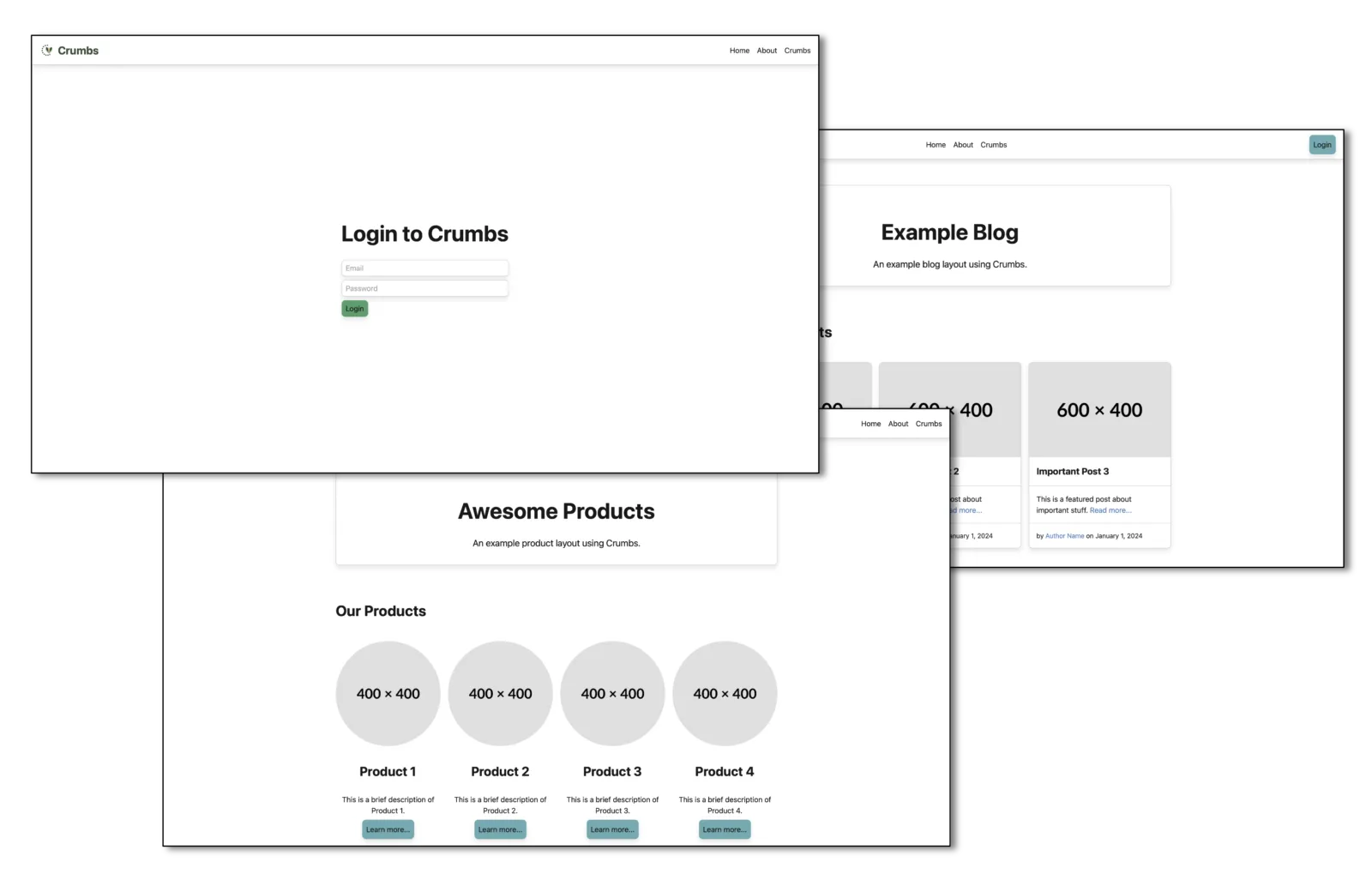
Crumbs CSS Framework Screenshot

The framework focuses on providing a solid foundation for building modern web interfaces, with an emphasis on simplicity, flexibility, and ease of use. It includes a variety of pre-defined styles and components that can be easily customized to fit the needs of your project.

Features

Lightweight and Minimal

Crumbs is designed to be lightweight and minimal, providing only the essential styles and components needed for building web interfaces.

Responsive Design

Crumbs includes a responsive grid system and takes care of cross-browser compatibility to help you create layouts that work on all screen sizes.

Customizable

Crumbs is built with Sass, making it easy to customize the framework to fit your project's needs. You can easily override variables and mixins to create your own styles.

Predefined Components

Crumbs includes a variety of pre-defined components, such as buttons, forms, and navigation menus, that can be easily customized and integrated into your project.

Utility classes

Crumbs provides a range of utility classes for common tasks such as spacing, typography, and colors, making it easy to apply consistent styles throughout your project.

Open Source

Crumbs is an open-source project, allowing you to contribute to its development and benefit from the contributions of others in the community.

Examples

Explore some practical examples built with Crumbs to kickstart your projects. Use these templates as a foundation and customize them to fit your needs or as inspiration for your own designs.

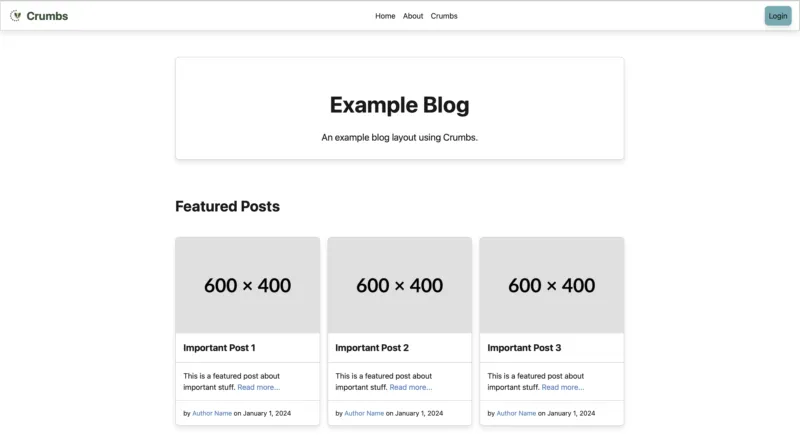
Example Blog Screenshot

Blog Layout

A simple and clean blog layout showcasing articles, images, and navigation.

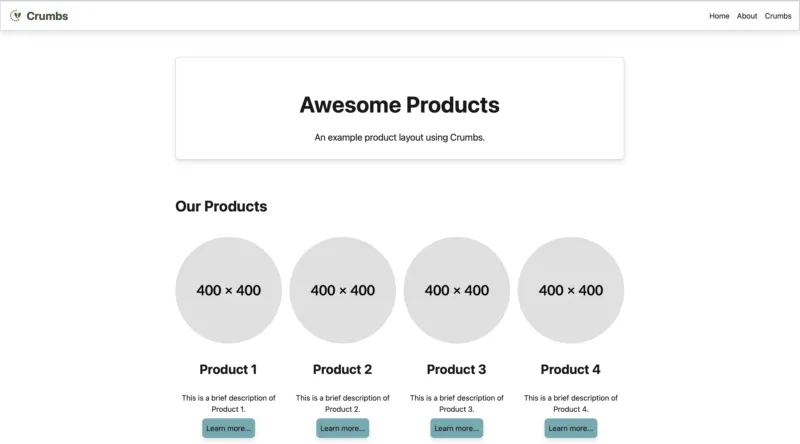
Example Product Screenshot

Product Page

A clean product page layout with images, descriptions, and purchase options.

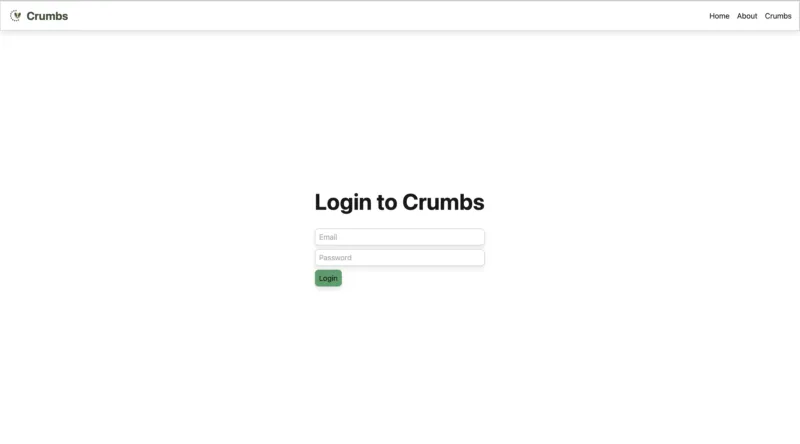
Example Login Screenshot

Login Form

A minimal and user-friendly login form with validation and accessibility features.

Core

The core styles provide a solid foundation for your project.

Base values

  • Base font size: 16px (1rem)
  • Base line height: 1.5
  • Base spacing unit: 16px (1rem)

Typography

Body text should be legible and easy to read. Our base font size is 16px (1rem).

Heading 1 2.5rem

Heading 2 2rem

Heading 3 1.75rem

Heading 4 1.5rem

Heading 5 1.25rem
Heading 6 1rem

Paragraph 1rem

Layout

Crumbs provides a simple layout system to help you structure your content.

Container

The container classes are used to center and constrain the width of your content.


<div class="container">
  ...
</div>

<div class="container-fluid">
  ...
</div>
    
Container behavior

The container class provides a responsive fixed width container that adjusts its max-width at different breakpoints to ensure optimal readability across devices.

The container-fluid class provides a full-width container that spans the entire width of the viewport.

Grid

The grid layout allows for the creation of complex responsive layouts using a series of rows and columns.


<div class="grid">
  <div class="row">
    <div class="col-4">Column 1 (col-4)</div>
    <div class="col-4">Column 2 (col-4)</div>
    <div class="col-4">Column 3 (col-4)</div>
  </div>
  <div class="row">
    <div class="col-6">Column 1 (col-6)</div>
    <div class="col-6">Column 2 (col-6)</div>
  </div>
  <div class="row">
    <div class="col-3">Column 1 (col-3)</div>
    <div class="col-3">Column 2 (col-3)</div>
    <div class="col-3">Column 3 (col-3)</div>
    <div class="col-3">Column 4 (col-3)</div>
  </div>
</div>
    
Column 1 (col-4)
Column 2 (col-4)
Column 3 (col-4)
Column 1 (col-6)
Column 2 (col-6)
Column 1 (col-3)
Column 2 (col-3)
Column 3 (col-3)
Column 4 (col-3)
Note

You can also nest grids to create more complex layouts.

Content

Crumbs provides a set of styles for common content elements to ensure consistency and readability across your application.

Code

Code snippets should be displayed using the code element.

Inline code Ctrl + c

#!/bin/bash
echo "Hello, World!"
    

#!/bin/bash
echo "Hello, World!"
    

#!/bin/bash
echo "Hello, World!"
    

Lists

Crumbs provides styles for unordered lists, ordered lists, and definition lists.

Unordered List

Unordered lists are used to present items without a specific order.


<ul>
  <li>Item 1</li>
  <li>Item 2
    <ul>
      <li>Subitem 1</li>
      <li>Subitem 2</li>
    </ul>
  </li>
  <li>Item 3</li>
</ul>
  
  • Item 1
  • Item 2
    • Subitem 1
    • Subitem 2
  • Item 3

Ordered List

Ordered lists are used to present items in a specific sequence or ranking.


<ol>
  <li>Item 1</li>
  <li>Item 2
    <ol>
      <li>Subitem 1</li>
      <li>Subitem 2</li>
    </ol>
  </li>
  <li>Item 3</li>
</ol>
    
  1. Item 1
  2. Item 2
    1. Subitem 1
    2. Subitem 2
  3. Item 3

Definition List

Definition lists are used to define terms and their corresponding descriptions.


<dl>
  <dt>Definition Term 1</dt>
  <dd>Definition Description 1</dd>
  <dt>Definition Term 2</dt>
  <dd>Definition Description 2</dd>
</dl>
    
Definition Term 1
Definition Description 1
Definition Term 2
Definition Description 2

Quotes

Quotes are used to indicate the title of a work or a quotation from a source.

Inline Quotes

Inline quotes are used within a paragraph to highlight a specific phrase or sentence.


<p>This is an example of an inline quote: <q>This is a quote within a paragraph.</q></p>
    

This is an example of an inline quote: This is a quote within a paragraph.

Block Quotes

Block quotes are used for longer quotations and are typically displayed as a separate block.


<blockquote>
  <p>This is a blockquote.</p>
</blockquote>
    

This is a blockquote.


<blockquote>
  <p>This is a blockquote with a citation.</p>
  <cite>- Author Name</cite>
</blockquote>
    

This is a blockquote with a citation.

- Author Name

<blockquote cite="https://example.com">
  <p>This is a blockquote with a source URL.</p>
</blockquote>
    

This is a blockquote with a source URL.


<blockquote cite="https://example.com">
  <p>This is a blockquote with a source URL and a citation.</p>
  <cite>- Author Name</cite>
</blockquote>
    

This is a blockquote with a source URL and a citation.

- Author Name

Tables

Crumbs provides styles for tables to enhance their appearance and readability.

Simple Table

A basic table structure with rows and columns.


<table>
  <tbody>
    <tr>
      <td>Row 1, Cell 1</td>
      <td>Row 1, Cell 2</td>
      <td>Row 1, Cell 3</td>
    </tr>
    <tr>
      <td>Row 2, Cell 1</td>
      <td>Row 2, Cell 2</td>
      <td>Row 2, Cell 3</td>
    </tr>
    <tr>
      <td>Row 3, Cell 1</td>
      <td>Row 3, Cell 2</td>
      <td>Row 3, Cell 3</td>
    </tr>
  </tbody>
</table>
    
Row 1, Cell 1 Row 1, Cell 2 Row 1, Cell 3
Row 2, Cell 1 Row 2, Cell 2 Row 2, Cell 3
Row 3, Cell 1 Row 3, Cell 2 Row 3, Cell 3

Table with Header and Footer


<table>
  <thead>
    <tr>
      <th>Header 1</th>
      <th>Header 2</th>
      <th>Header 3</th>
    </tr>
  </thead>
  <tbody>
   ...
  </tbody>
  <tfoot>
    <tr>
      <td colspan="3">Footer 1</td>
    </tr>
  </tfoot>
</table>
    
Header 1 Header 2 Header 3
Row 1, Cell 1 Row 1, Cell 2 Row 1, Cell 3
Row 2, Cell 1 Row 2, Cell 2 Row 2, Cell 3
Row 3, Cell 1 Row 3, Cell 2 Row 3, Cell 3
Footer 1

Colored Table


<table class="colored">
  <thead>
    ...
  </thead>
  <tbody>
    ...
  </tbody>
</table>
    
Header 1 Header 2 Header 3
Row 1, Cell 1 Row 1, Cell 2 Row 1, Cell 3
Row 2, Cell 1 Row 2, Cell 2 Row 2, Cell 3
Row 3, Cell 1 Row 3, Cell 2 Row 3, Cell 3

Bordered Table


<table class="bordered">
  <thead>
    ...
  </thead>
  <tbody>
    ...
  </tbody>
</table>
    
Header 1 Header 2 Header 3
Row 1, Cell 1 Row 1, Cell 2 Row 1, Cell 3
Row 2, Cell 1 Row 2, Cell 2 Row 2, Cell 3
Row 3, Cell 1 Row 3, Cell 2 Row 3, Cell 3

Lined Table


<table class="lined">
  <thead>
    ...
  </thead>
  <tbody>
    ...
  </tbody>
</table>
    
Header 1 Header 2 Header 3
Row 1, Cell 1 Row 1, Cell 2 Row 1, Cell 3
Row 2, Cell 1 Row 2, Cell 2 Row 2, Cell 3
Row 3, Cell 1 Row 3, Cell 2 Row 3, Cell 3

Images

Crumbs ships styles for images to make them responsive and visually appealing.

Responsive Images

By default, images are responsive and will scale to fit the width of their container.


<img src="https://placehold.co/1200x200/e0e0e0/000000.webp" alt="Example Image">
    
Example Image

Rounded Images

Use the rounded class to apply rounded corners to an image.


<img class="rounded" src="https://placehold.co/900x200/e0e0e0/000000.webp" alt="Example Image">
    
Example Image

Circle Images

Use the circle class to create circular images.


<img class="circle" src="https://placehold.co/200x200/e0e0e0/000000.webp" alt="Example Image">
    
Example Image

Shadow Images

Use the shadow class from the utilities to add a shadow effect to an image.


<img class="shadow" src="https://placehold.co/200x200/e0e0e0/000000.webp" alt="Example Image">
<img class="circle shadow" src="https://placehold.co/200x200/e0e0e0/000000.webp" alt="Example Image">
    
Example Image Example Image

Forms

Forms are an essential part of user interaction.

Login Form

A simple login form might look like this:


<form>
  <input type="text" placeholder="Username">
  <input type="password" placeholder="Password">
  <button type="submit" class="button brand">Login</button>
</form>
  

Registration Form

A simple registration form might look like this:


<form>
  <input type="text" placeholder="Username">
  <input type="email" placeholder="Email">
  <input type="password" placeholder="Password">
  <button type="submit" class="button brand">Register</button>
</form>
  

Newsletter Sign-up

Subscribe to our newsletter:


<form>
  <input type="email" class="input" placeholder="Email">
  <div class="input-group">
    <input type="checkbox" id="subscribe">
    <label for="subscribe">Subscribe me to the newsletter</label>
  </div>
  <button type="submit" class="button brand align-center">Subscribe</button>
</form>
  

Search forms with Input Groups

Use input groups to combine inputs and buttons.


<form>
  <div class="input-group">
    <input type="text" class="input" placeholder="Search...">
    <button type="submit" class="button brand">Search</button>
  </div>
</form>
  

Components

Crumbs includes a variety of pre-designed components to help you build your UI quickly.

Alerts

Use alerts to provide feedback messages to users.


<div class="alert">This is a default alert.</div>
<div class="alert info">This is an info alert.</div>
<div class="alert success">This is a success alert.</div>
<div class="alert warning">This is a warning alert.</div>
<div class="alert danger">This is a danger alert.</div>
    
This is a default alert.
This is an info alert.
This is a success alert.
This is a warning alert.
This is a danger alert.

Badges

Badges are small count and labeling components.


<span class="badge">Default</span>
<span class="badge success">Success</span>
<span class="badge info">Info</span>
<span class="badge warning">Warning</span>
<span class="badge danger">Danger</span>
    
Default Success Info Warning Danger

Buttons

Buttons are used to trigger actions or events. They should be easily identifiable and provide feedback when interacted with.

Default Buttons


<button class="button" type="button">Simple Button</button>
<button class="button disabled" type="button">Disabled Button</button>
    

Button Sizes

Buttons are available in different sizes using size classes.


<button class="button lg" type="button">Large Button</button>
<button class="button md" type="button">Medium Button</button>
<button class="button" type="button">Default Button</button>
<button class="button sm" type="button">Small Button</button>
<button class="button xs" type="button">Extra Small Button</button>
    

Styled Buttons

You can style buttons with utility classes.


<button class="button background-brand color-light" type="button">Brand Button</button>
<button class="button background-light color-brand" type="button">Brand Button</button>
<button class="button background-dark color-light" type="button">Dark Button</button>
    

Status Buttons

Use status classes to indicate different types of actions.


<button class="button info" type="button">Info Button</button>
<button class="button success" type="button">Success Button</button>
<button class="button warning" type="button">Warning Button</button>
<button class="button danger" type="button">Danger Button</button>
    

Callouts

Callouts are used to highlight important information.


<div class="callout">
  <div class="callout-header">Callout Header</div>
  <div class="callout-body">This is the body of the callout.</div>
</div>
<div class="callout success">
  <div class="callout-header">Success Callout</div>
  <div class="callout-body">This is a success callout.</div>
</div>
<div class="callout info">
  <div class="callout-header">Info Callout</div>
  <div class="callout-body">This is an info callout.</div>
</div>
<div class="callout warning">
  <div class="callout-header">Warning Callout</div>
  <div class="callout-body">This is a warning callout.</div>
</div>
<div class="callout danger">
  <div class="callout-header">Danger Callout</div>
  <div class="callout-body">This is a danger callout.</div>
</div>
<div class="callout">
  <div class="callout-header"><span>⚠️</span>Callout with Icon</div>
  <div class="callout-body">This callout includes an icon.</div>
</div>
    
Callout Header
This is the body of the callout.
Success Callout
This is a success callout.
Info Callout
This is an info callout.
Warning Callout
This is a warning callout.
Danger Callout
This is a danger callout.
⚠️Callout with Icon
This callout includes an icon.

Cards

Cards are flexible content containers with multiple variants and options.

Basic Card

A simple card with a header and body.


<div class="card">
  <div class="card-header">
    Card Header
  </div>
  <div class="card-body">
    This is some text within a card body.
  </div>
</div>
    
Card Header
This is some text within a card body.

Card with Image

A card that includes an image at the top.


<div class="card">
  <img class="card-image" src="image.jpg" alt="Card Image">
  <div class="card-body">
    This is some text within a card body.
  </div>
</div>
    
Card Image
This is some text within a card body.

You can place the image anywhere within the card.


<div class="card">
  $lt;div class="card-header">
    Card Header
  </div>
  <div class="card-body">
    This is some text within a card body.
  </div>
  <img class="card-image" src="image.jpg" alt="Card Image">
</div>
    
Card Header
This is some text within a card body.
Card Image

All features Card


<div class="card">
  <img class="card-image" src="image.jpg" alt="Card Image">
  <div class="card-header">
    Card Header
  </div>
  <div class="card-body">
    This is some text within a card body.
  </div>
  <div class="card-footer">
    Card Footer
  </div>
</div>
    
Card Image
Card Header
This is some text within a card body.

Cards in a Grid

You can use the grid system to layout multiple cards.


<div class="grid">
  <div class="row">
    <div class="col-4">
      <div class="card">
        <div class="card-header">Header 1</div>
        <div class="card-body">Card 1</div>
      </div>
    </div>
    <div class="col-4">
      <div class="card">
        <div class="card-header">Header 2</div>
        <div class="card-body">Card 2</div>
      </div>
    </div>
    <div class="col-4">
      <div class="card">
        <div class="card-header">Header 3</div>
        <div class="card-body">Card 3</div>
      </div>
    </div>
  </div>
</div>
    
Header 1
Card 1
with 2 lines
Header 2
Card 2
Header 3
Card 3

Cover

The cover component is designed to create full-width and full-height sections that can be used as headers or promotional areas on your webpage.


<div class="cover text-center">
  <div class="cover-inner">
    <h1>Cover Title</h1>
    <p>This is a cover section.</p>
    <a href="#action" class="button success">Call to Action</a>
  </div>
</div>
    
Example
You can see the cover component in action on the Hero Section.

Hero

The hero component is designed to create prominent sections on your webpage, typically used for showcasing key content or calls to action.


<div class="hero">
  <h1>Hero Title</h1>
  <p>This is a hero section.</p>
  <a href="#action" class="button success">Call to Action</a>
</div>
    

Hero Title

This is a hero section.

Call to Action

Utilities

Crumbs provides a set of utility classes to help you style your components quickly and easily.

Alignments

Use alignment utilities to control the text alignment of elements.

There are text alignment classes:


<div class="text-left">Left aligned text</div>
<div class="text-center">Center aligned text</div>
<div class="text-right">Right aligned text</div>
<div class="text-justify">Justified text</div>
    
Left aligned text
Center aligned text
Right aligned text
Justified text

And alignment for block elements:


<div class="align-left">Left aligned block</div>
<div class="align-right">Right aligned block</div>
    
Left aligned block

Right aligned block

Borders

Utilize border utilities to quickly style elements with borders.


<div class="border">All borders</div>
<div class="border-left">Left border</div>
<div class="border-right">Right border</div>
<div class="border-top">Top border</div>
<div class="border-bottom">Bottom border</div>
    
All borders
Left border
Right border
Top border
Bottom border

Colors

Apply color utilities to change the text and background colors of elements.


<div class="color-brand">Brand colored text</div>
<div class="color-light background-dark">Light colored text on dark background</div>
<div class="background-brand color-light">Brand background with light text</div>
    
Brand colored text
Light colored text on dark background
Brand background with light text

Shadows

Apply shadow utilities to add depth to your elements.


<div class="shadow-xs">Extra small shadow</div>
<div class="shadow-sm">Small shadow</div>
<div class="shadow-md">Element with shadow</div>
<div class="shadow-lg">Large shadow</div>
<div class="shadow-xl">Extra large shadow</div>
    
Extra small shadow
Small shadow
Element with shadow
Large shadow
Extra large shadow

Visibility

Control the visibility of elements using visibility utilities.


<div class="visible">This element is visible.</div>
<div class="hidden">This element is invisible.</div>
    
This element is visible.

Spacing

Use spacing utilities to manage the margin and padding of elements.


<div class="m-4">Element with margin 4</div>
<div class="p-4">Element with padding 4</div>
<div class="mt-2 mb-2">Element with top and bottom margin 2</div>
<div class="pt-2 pb-2">Element with top and bottom padding 2</div>
    

Customization

Crumbs uses design tokens to define its core styles, including colors, typography, spacing, and more. These tokens ensure consistency across the framework and make it easy to customize the look and feel of your application.

Color Tokens

Color tokens are used to define the primary, secondary, and neutral colors of the framework. They can be easily customized to match your brand colors by using CSS variables.


:root {
  --color-brand: #3498db;
  --color-light: #fcefe6;
  --color-dark: #564d43;
  --color-contrast: #2f3e46;

  --color-text: #181818;
  --color-background: #fff;
  --color-text-inverse: #fff;
  --color-background-inverse: #2f3e46;
  --color-link: #5a7fb8;

  --color-success: #28a745;
  --color-warning: #ffc107;
  --color-danger: #dc3545;
  --color-info: #17a2b8;
}
      
Accessibility Warning

To ensure accessibility, make sure to choose colors that provide sufficient contrast between text and background elements. Also test the colors in both light and dark mode to ensure readability in different environments.

Border Tokens

Border tokens define the border radius, style, width, and color used throughout the framework. These can also be customized using CSS variables.


:root {
  --border-radius: 4px;
  --border-style: solid;
  --border-width: 1px;
  --border-color: #2f3e46;
}
      

Mixins

Mixins provide reusable components and styles for developers to quickly build consistent UI elements.

Border Mixins

Border mixins allow you to easily apply border styles to elements.


.element {
  @include border(bottom, 2px, solid, #000);
}
    

Box Shadow Mixins

Box shadow mixins help you add shadow effects to elements.


.element {
  @include box-shadow('sm');
}
    

Media Mixins

Crumbs comes with an automatic detection of the preferred dark mode setting of the user's system. Therefore, some elements will change, if the operating system is set to dark mode.


.element {
  @include prefers-dark {
    background-color: var(--color-background-inverse);
    color: var(--color-text-inverse);
  }
}